

Picture this: your project manager spends hours each week chasing down handwritten timesheets, only to discover that a single transposed number has thrown off payroll and muddied your job-costing reports. For many small and midsize businesses, this kind of time-tracking chaos still eats into billable hours, cash flow, and team morale-problems that scale painfully as headcount grows. For companies that already rely on QuickBooks, discovering a QuickBooks Time is one of the fastest ways to eliminate those headaches.
Here at Fourlane, we know that a web-based time tracking solution that combines scheduling, GPS monitoring, customizable reporting and seamless payroll integration gives teams the accuracy and operational visibility they need to cut payroll prep time, strengthen compliance and make smarter job-costing decisions. When you set up QuickBooks Time correctly from day one, every minute your employees log becomes a clear, billable data point that flows straight into QuickBooks-no duplicate entry, no end-of-week surprises.
Understanding QuickBooks Time: Core Features and Benefits
QuickBooks Time is a web-based time tracking software that integrates with QuickBooks that lets you manage people, projects and payroll from anywhere, replacing paper timesheets with real-time digital data that flows straight into QuickBooks Desktop for streamlined approvals and reporting.
Here’s what you’ll find as soon as you open QuickBooks Time:
- Real-time time tracking with one-click clock-in/clock-out
- Drag-and-drop scheduling that keeps crews in the right place at the right time
- GPS and geofencing tools for location verification and time-on-site accuracy
- Customizable reports covering job costing, payroll, overtime and project progress
- A purpose-built QuickBooks Desktop integration powered by the Web Connector for seamless data sync and vendor import, plus options to email sync-status alerts for full visibility into every transfer of hours and costs
When you combine these features, the operational upsides multiply. You trim manual data entry, catch errors before they hit payroll, strengthen labor-law compliance, and gain instant insight into project profitability. Synced hours even appear in job-costing dashboards before payroll is run, giving you an early look at labor spend and margin health across every customer and job.
With these advantages in view, prepare QuickBooks Desktop for a smooth, bulletproof integration.
Preparing Your QuickBooks Desktop for Integration
Before you launch any new time-tracking platform, your accounting file has to be ready to capture the data it will send over. In QuickBooks Desktop, that means switching on a few behind-the-scenes features so labor hours flow cleanly into payroll, job-costing and project reports. Enabling Manual Payroll and activating job-costing, class and item tracking give you the hooks QuickBooks Time needs to post hours against the right jobs, service items and General Ledger accounts.
QuickBooks Desktop Preference Setup for QuickBooks Time (Step-by-Step)
-
In QuickBooks Desktop, go to Edit > Preferences > Payroll & Employees, then select Full Payroll or Manual Payroll.
-
Click the Company Preferences tab and enable Job Costing, Class, and Item Tracking for Paycheck Expenses.
-
Set a default class for paycheck expenses, or assign classes at the item level if you track departments, locations, or divisions.
-
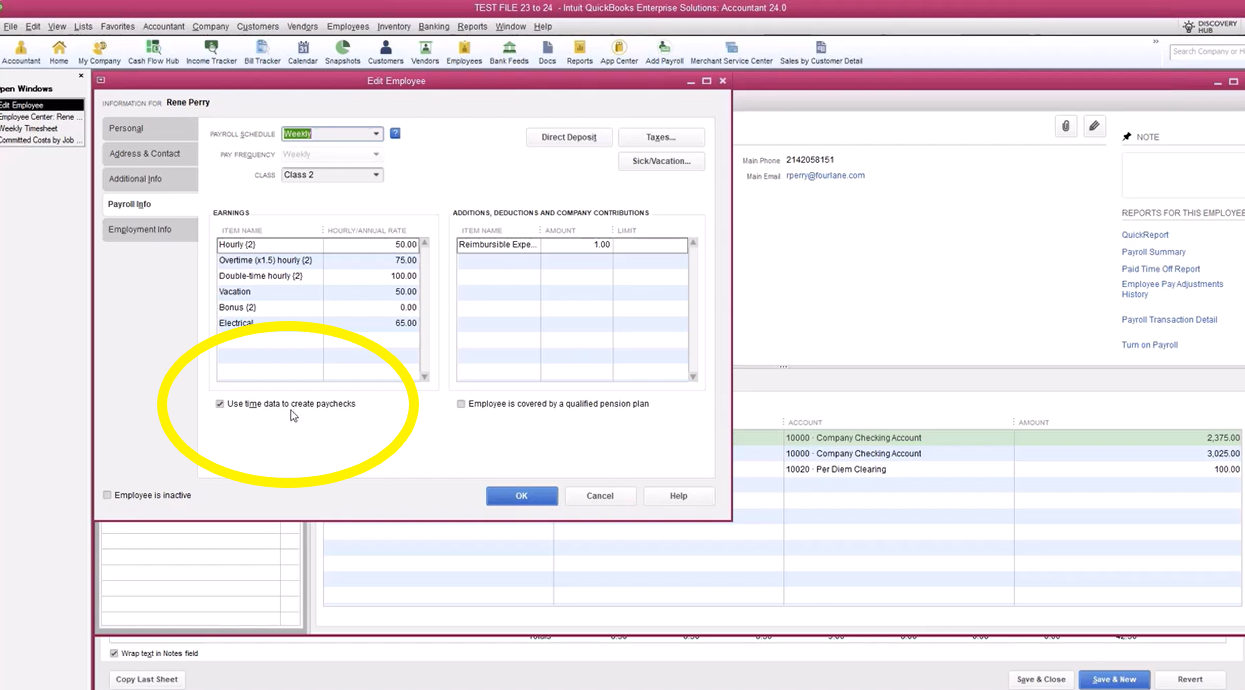
Go to Employees > Employee Center and verify each employee’s payroll schedule, default class, and wage items.
-
Return to Preferences and enable Use time data to create paychecks to ensure QuickBooks Desktop can pull hours into payroll.
-
If you bill customers for labor, open Lists > Item List, edit each Service Item, and confirm billable status and income account mapping.
Getting your team profiles right is just as important as flipping the preference switches. When you’re preparing for sync, focus on accurate employee details, from addresses to payroll items, and be sure you’re mapping the rates for each person. By pairing a concise job role, payroll schedule and pay item with every worker, you prevent mismatched wage codes and ensure that overtime, double-time and billable labor calculate correctly during sync.
Once these fundamentals are locked in, you’re ready to install and configure QuickBooks Time without worrying about data conflicts or cleanup after the fact. In the next section we’ll cover the exact steps to add the QuickBooks Desktop integration, set your sync preferences and run a flawless first import.
Installing and Configuring QuickBooks Time for Your Organization
Getting QuickBooks Time up and running is straightforward once your accounting file is ready. The process starts in the QuickBooks Time tracker dashboard where you navigate to Features > Manage Add-Ons, select the QuickBooks Desktop integration and then follow the prompts to download and install the Web Connector-Intuit’s small utility that keeps the two systems in sync. During installation, the connector issues a unique password you’ll paste into QuickBooks and prompts you to grant the app permission to access sensitive company data, ensuring hours, jobs and employee details move securely between platforms without manual exports or imports. After the connector is authorized, you can even set it to run automatically at timed intervals so data flows in the background without extra clicks.
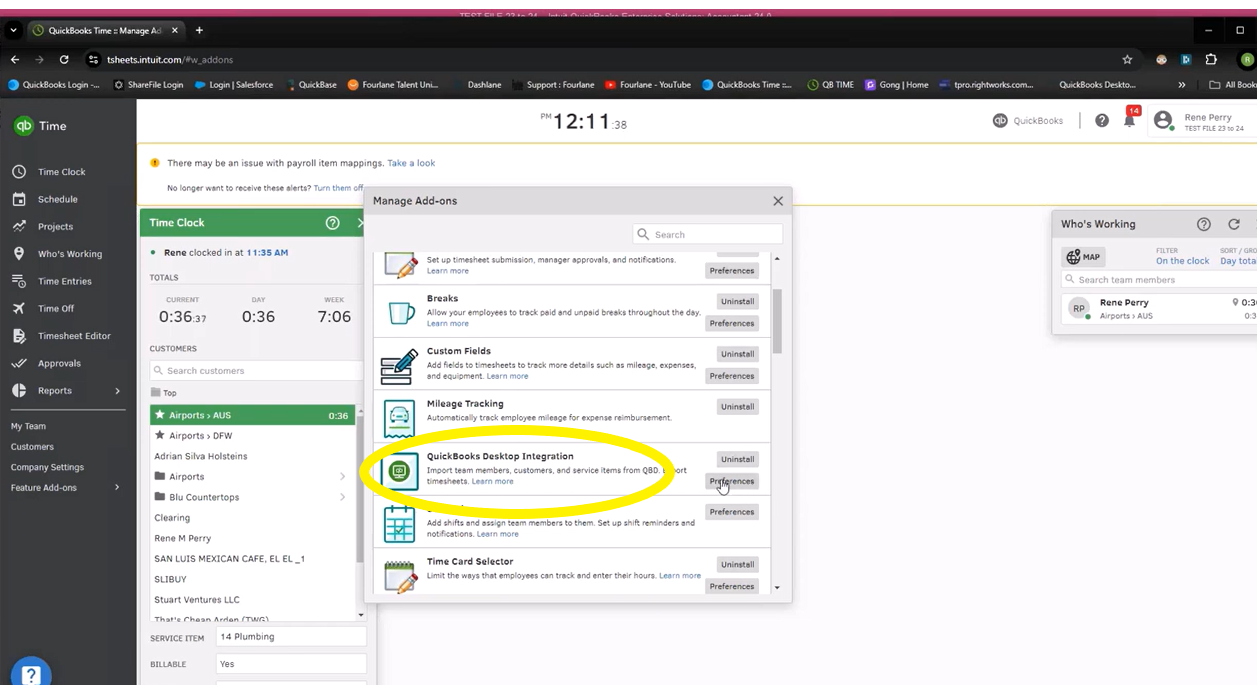
Once the connector is live, turn to the integration preferences inside QuickBooks Time. Here you’ll decide which fields appear on every timesheet (customer, service item, class and billable status, for instance), require billable flags when labor should pass through to invoicing, and opt into email status updates so you’re alerted the moment a sync succeeds-or if it fails and needs attention. You can also import 1099 vendors, download the latest Web Connector file when updates are released, and map each employee’s payroll items so hours in QuickBooks Time align perfectly with wage codes in QuickBooks Desktop, all of which reduces rework and prevents mismatched labor costs across your books.
Before you click “Run Sync,” keep these best practices in mind:
- Verify that every employee, customer and service item you expect to use is active in QuickBooks Desktop before the first import.
- Run the Web Connector’s sync manually the first time and review the log for skipped records or duplicate-name conflicts.
- Confirm that hourly rates, classes and billable checkboxes carried over correctly by spot-checking a handful of imported timecards.
- Set the Web Connector to sync automatically at least once per day but avoid overlapping payroll processing windows to prevent locked periods or partial transfers.
- Document any custom export or mapping settings so future admins can maintain a consistent configuration.
With QuickBooks Time installed, integrated and tested, you’re ready to dive into the day-to-day workflows-entering hours, scheduling crews and approving time sheets – that turn raw labor data into crystal-clear cost insights.
Leveraging QuickBooks Time Features for Accurate Tracking and Reporting
Everyday success with QuickBooks Time comes down to three repeatable actions: capturing hours the moment they’re worked, tying those hours to the right customer or job and approving the results before they enter QuickBooks. When those workflows run smoothly, you gain immediate visibility into project labor costs and payroll liabilities without chasing paperwork or rekeying data.
A well-built timecard is the cornerstone of that accuracy. It is essential to include the customer or job, service item, billable checkbox and class on each entry so that time feeds correctly into billing and reports. To create a rock-solid timecard:
- Clock in from the web browser, mobile app or time-kiosk.
- Select the customer and, if applicable, the sub-job the work supports.
- Choose the correct service item so labor posts to the right revenue or cost account.
- Mark the entry “Billable” when you intend to invoice the customer, leaving it unchecked for internal work.
- Assign a class if you track locations, departments or cost centers.
- Add notes or attachments–photos, signatures or documents-for extra context.
- Save the entry, then submit it for manager approval at day’s end or close of pay period.
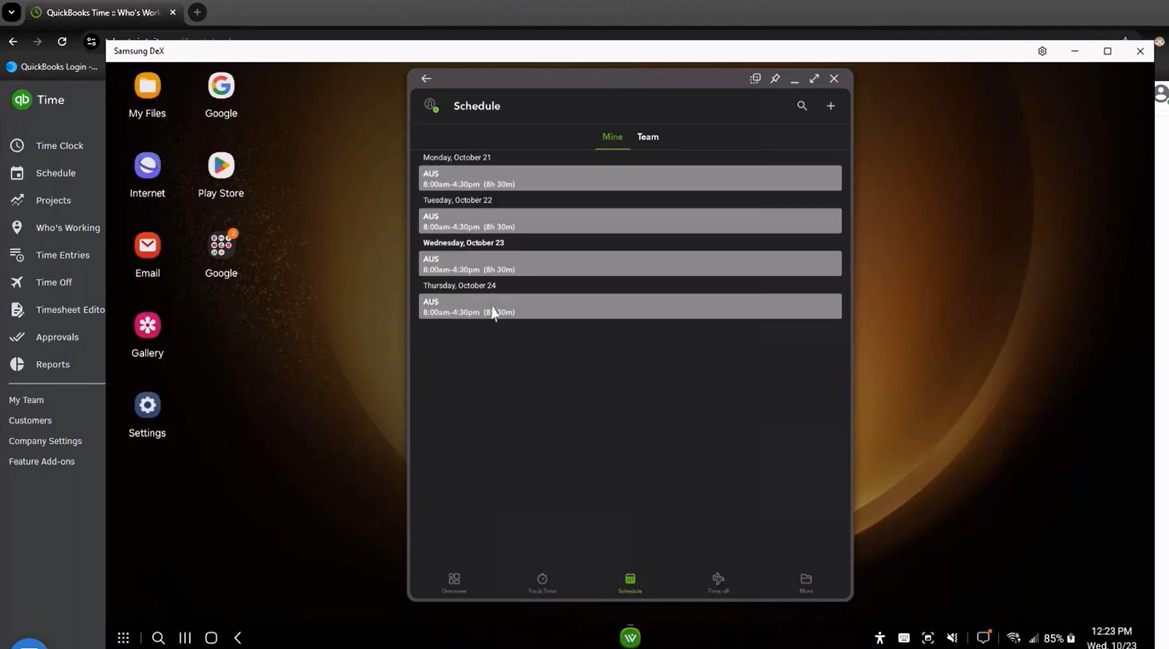
Scheduling keeps everyone on the same page, too. By drafting and publishing shifts inside QuickBooks Time, supervisors can assign multiple employees to a job, set start and end times, color-code tasks and repeat them daily or weekly-ensuring crews know exactly where to be and what to tackle next without back-and-forth phone calls.
Our team at Fourlane highlights location tools as another layer of accountability. Managers can see where each team member is on the map, and if someone tries to clock in miles from the jobsite, the system can block the punch so you’re always able to verify that employees are where they should be. Coupled with geofencing, this prevents accidental (or intentional) time theft and reinforces safety protocols for field teams.
For employees on the move, the Workforce mobile app mirrors the desktop experience. Staff can review schedules, switch between customer jobs with a tap, correct their own entries (with audit trails) and track time offline if cellular reception drops-perfect for construction crews, service technicians and remote workers who rarely sit at a desk.
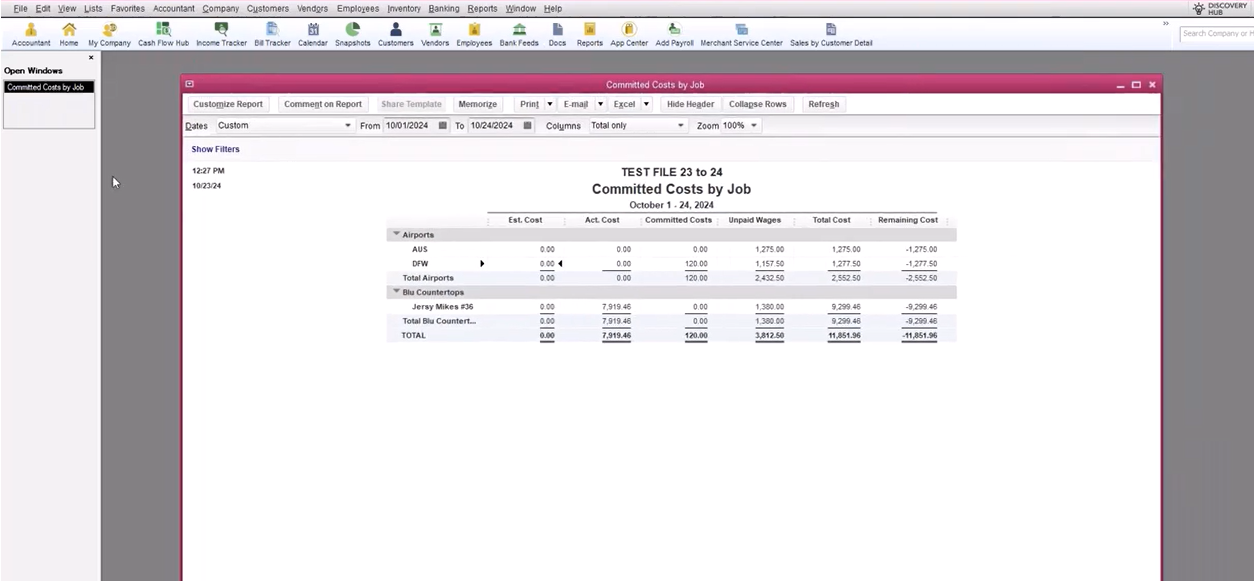
Once hours are in and approved, the next step is making the numbers work for you. Job-costing and payroll reports draw directly from QuickBooks Time, meaning you can monitor labor spend in real time. Unpaid wages populate the committed-cost-by-job report before payroll is even processed, giving you an early read on margin trends and letting project managers adjust course before overruns snowball.
All these capabilities feed into a single goal: transforming raw hours into reliable business intelligence.
Maximizing the Value of QuickBooks Time: Payroll, Job Costing, and Best Practices
Once managers hit “Approve,” the hard work is over-hours stream straight into payroll and job-costing screens without another keystroke. Our team at Fourlane has seen that QuickBooks Time will populate your payroll, and then you process your payroll with all the hours already filled in.
Beyond payroll, approved hours immediately feed analytical tools inside QuickBooks. A committed cost by job report updates with every sync, letting project leaders spot labor overruns long before paychecks go out and invoices are issued. By seeing real-time unpaid wages alongside materials and overhead, you can adjust staffing or scope early and protect margins.
To keep that data pristine-and your audits painless, build the following habits into daily and weekly routines (and share them with every supervisor):
- Require supervisors to review timecards at the end of each shift, not days later, so corrections happen while details are fresh.
- Lock pay periods after payroll runs to prevent retroactive edits that can throw off taxes or job-costing totals.
- Schedule automatic Web Connector syncs during off-peak hours to minimize conflicts with active payroll processing.
- Use class tracking and service items consistently; a standardized pick-list reduces miscoding and accelerates month-end reporting.
- Audit GPS and geofence exceptions weekly to ensure location data remains accurate and to address any policy violations promptly.
- Train employees on the Workforce mobile app so they can review schedules, switch jobs on the fly and correct legitimate mistakes without clogging managers’ inboxes.
With these practices in place, you’ll transform QuickBooks Time from a simple punch clock into a strategic engine for payroll precision, regulatory compliance and real-time profitability insight.
Get Some Help
When QuickBooks Time is configured correctly, it delivers a single source of truth for every hour worked-whether employees are on-site, in the office or updating shifts from the Workforce mobile app, which lets them review schedules, track time offline and see job assignments from anywhere. Pair that mobility with automated syncs, GPS safeguards and real-time reporting, and you have a system that drives payroll accuracy, razor-sharp job costing and confident decision-making across your organization.
Ready to put those advantages to work? We’re here to help. As Intuit’s #1 QuickBooks Solution Provider since 2010, our team at Fourlane has guided thousands of businesses through every stage of QuickBooks Time setup-from initial file prep and integration to custom workflows, training and ongoing optimization. Contact Fourlane today to schedule a personalized consultation and start capturing every billable moment with confidence and clarity.
