
Workflow Process, Reporting, and Practical Tips for Smarter Spending
Picture this: every purchase request in your business flows smoothly from idea to approval to payment – without bottlenecks, surprise invoices, or frantic end-of-month reconciliations. When your QuickBooks Enterprise purchasing workflows fire on all cylinders, you reduce manual effort, protect cash flow, and gain real-time visibility into accounts payable and job costs.
That’s exactly what growing organizations in construction, manufacturing, professional services, and education need to stay profitable and in control.
In a recent Fourlane webinar, Trisha Thomas, Partner at Fourlane, walked through a real-world purchasing workflow in QuickBooks Enterprise – from purchase orders to receiving, billing, and reporting. This blog brings those insights together with best practices our team uses every day to help clients streamline purchasing, tighten controls, and turn data into confident decisions.
Understanding the Purchasing Workflow in QuickBooks Enterprise
A purchasing workflow is the series of steps that moves a need, from office supplies to subcontractor labor, from request to payment. In QuickBooks Enterprise, that workflow is built on linked transactions that tell a complete financial story.
When each step is documented and connected, you gain clarity on:
- Where money is committed
- What goods or services are still in transit
- When cash will leave the bank
That clarity helps you:
- Prevent duplicate or unauthorized spending
- Forecast cash requirements with confidence
- Maintain accurate job costing and profitability
- Strengthen vendor relationships through timely, accurate payments
At its core, the QuickBooks Enterprise purchasing workflow revolves around three building blocks: purchase orders, item receipts, and vendor bills. When these pieces flow together correctly, data entry becomes right-the-first-time, not a cleanup project later.
Step-by-Step: Purchasing Workflows in QuickBooks Desktop
1) Purchase Orders: The Foundation of an Effective Workflow
A purchase order (PO) is your formal commitment to buy goods or services. In QuickBooks Enterprise, POs are non-posting transactions, meaning they do not impact the general ledger. Instead, they reserve budget, signal vendors to fulfill requests, and set the stage for accurate inventory, job costing, and accounts payable.
Trisha recommends always starting with a purchase order – even for services or labor – because it creates visibility into committed costs before bills arrive.
Key PO Setup Tips
To turn purchase orders into a true source of truth:
- Use vendor selection and ship-to addresses to avoid misdeliveries and duplicate vendors
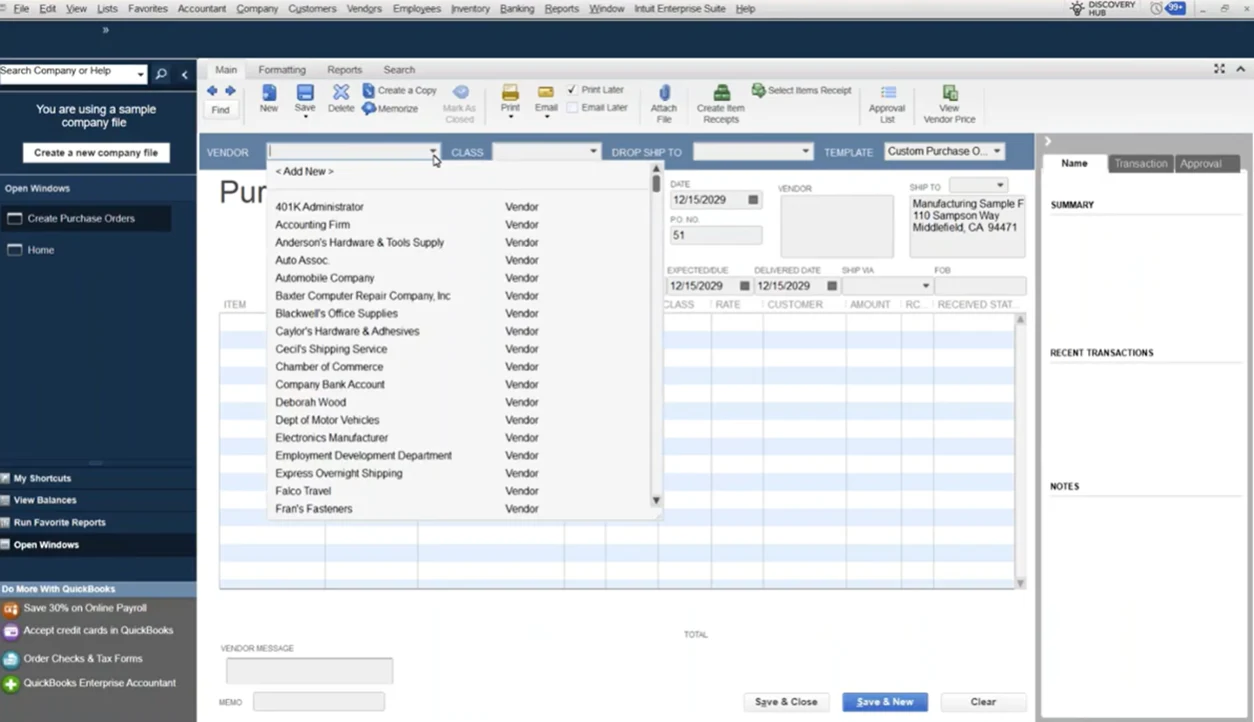
- Apply class tracking to segment spending by department, location, or project
- Customize PO templates to show vendor part numbers externally while keeping internal SKUs behind the scenes
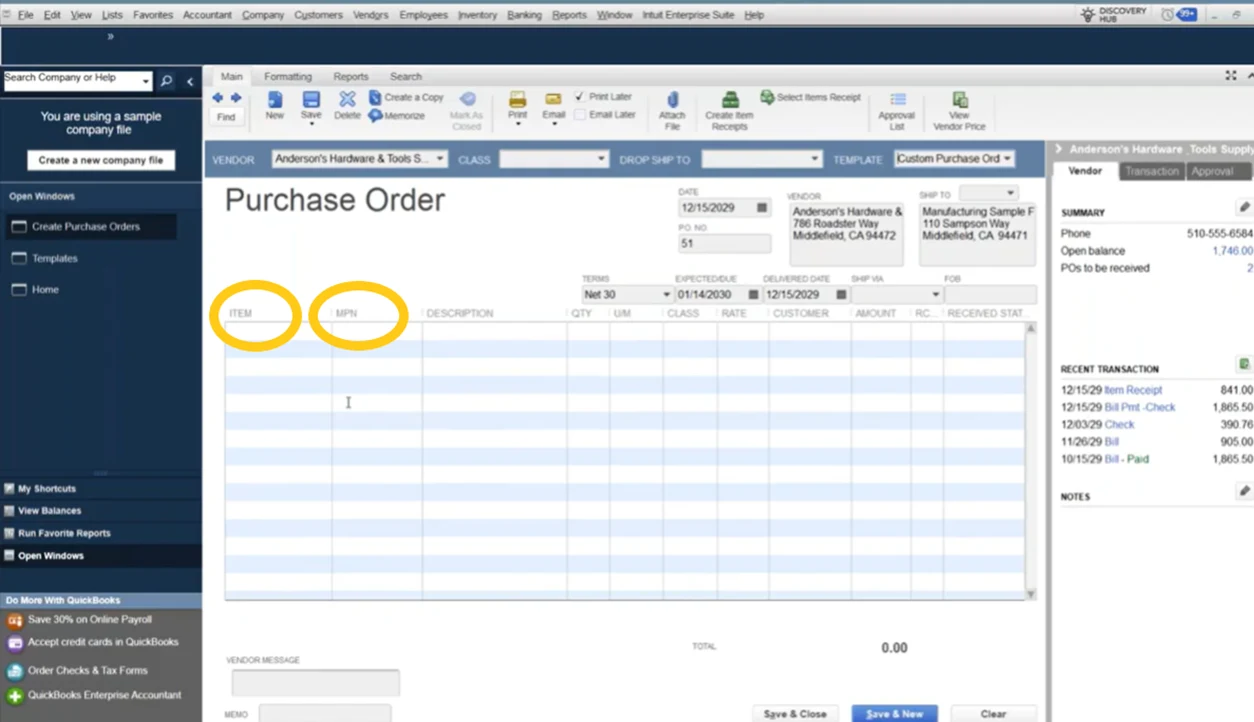
- Add custom fields for approvals, delivery dates, or contract references
- Use the items list so every line ties to the correct account
- Attach quotes, pricing agreements, or spec sheets directly to the PO
- Use sequential numbering (with optional prefixes if multiple buyers create POs)
With the right setup, a PO becomes more than a form – it becomes a control point.
2) Receiving: More Than Just Inventory
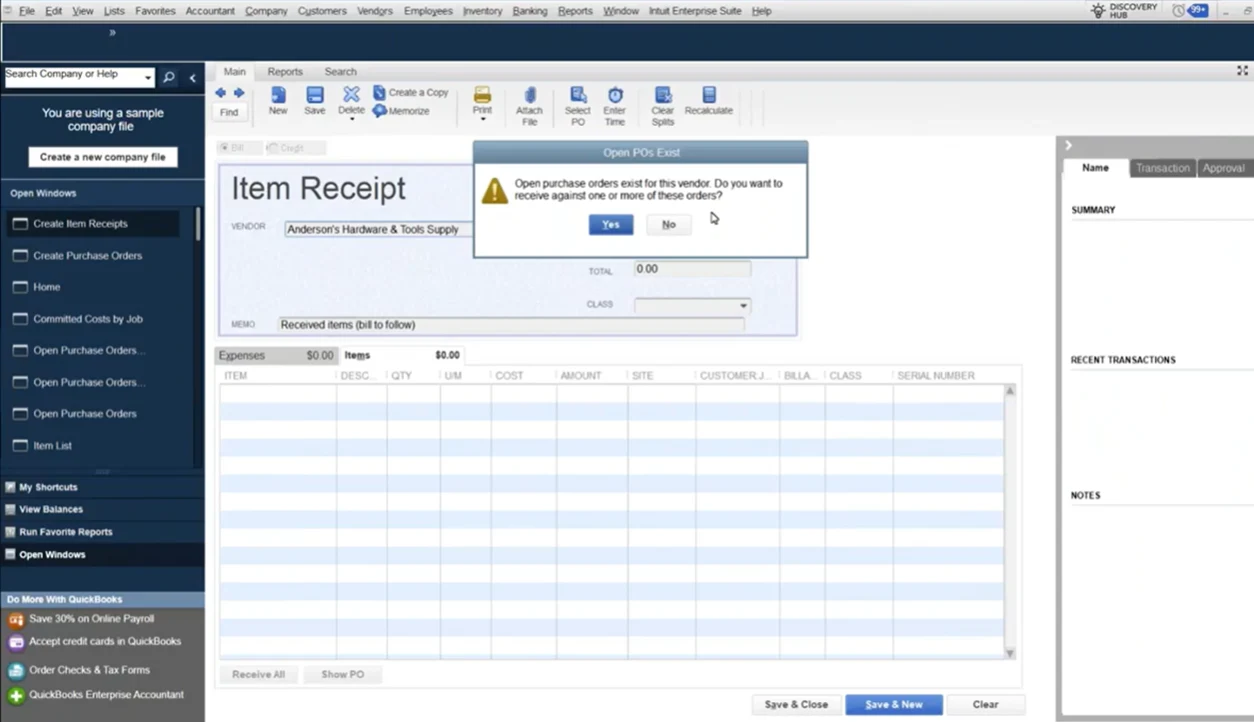
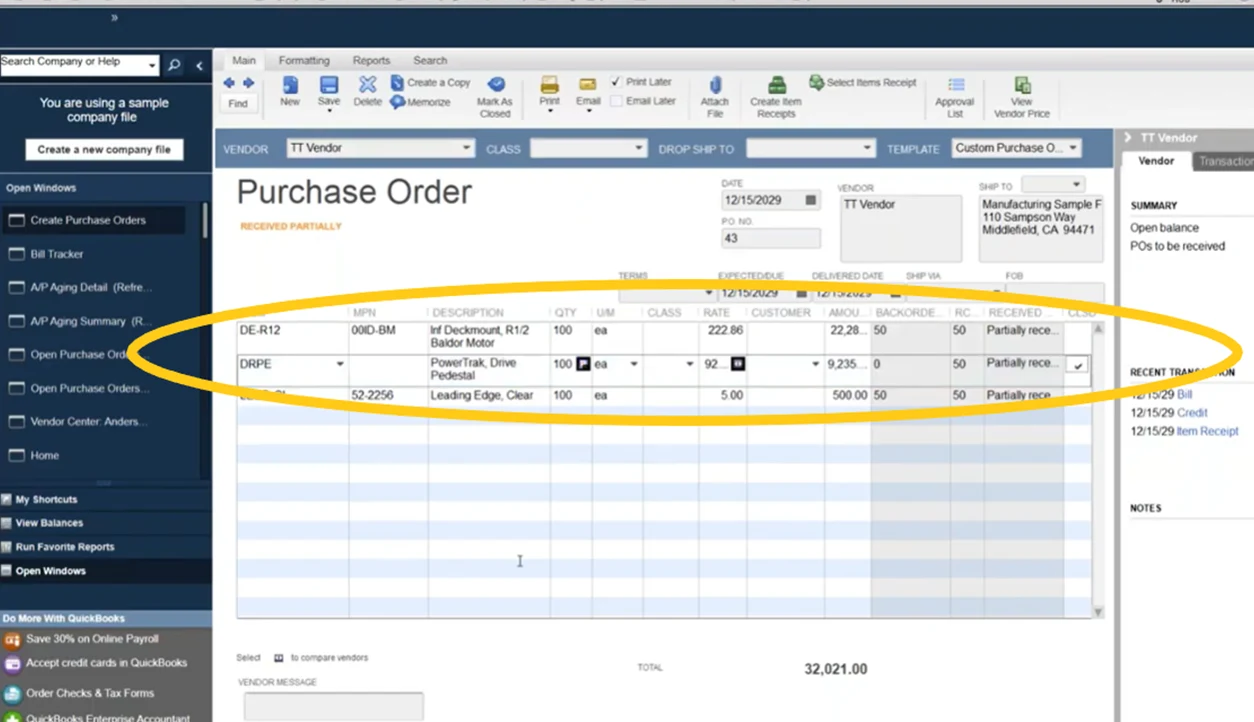
Receiving isn’t limited to pallets in a warehouse. In QuickBooks Enterprise, you can receive inventory, non-inventory items, and services, allowing committed costs to update in real time for job costing and cash-flow planning.
Best Practices for Receiving
- Open the PO and choose Receive Items or Receive Items and Enter Bill
- Confirm quantities against the packing slip and adjust for partial deliveries
- Select inventory sites if Advanced Inventory is enabled
- Leave back-ordered quantities open so the PO stays active
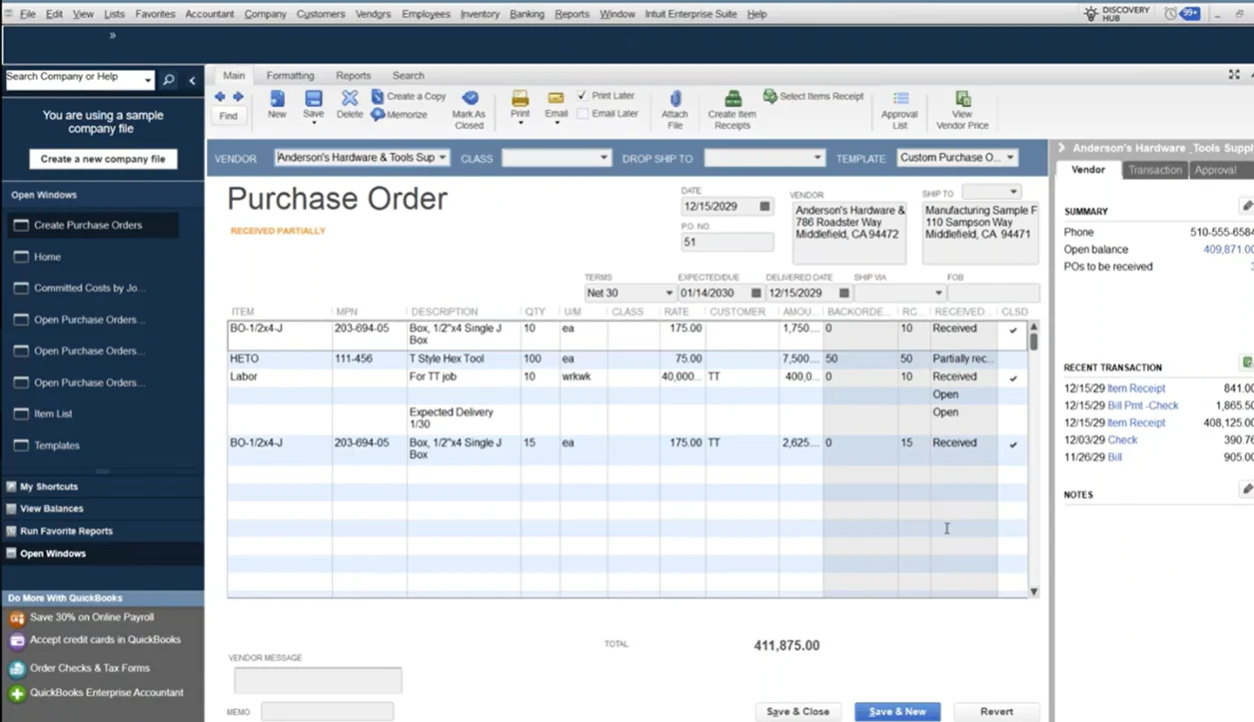
- Attach packing slips or service confirmations for audit readiness
- Save the item receipt to update inventory or expenses and accounts payable
Once saved, item receipts do post financially, giving you an accurate view of liabilities, even before the bill arrives.
For job-costing industries, this step is critical. Receiving services or labor reduces committed cost and replaces it with actual cost, improving project visibility.
3) Vendor Bills: Accuracy Protects Cash Flow
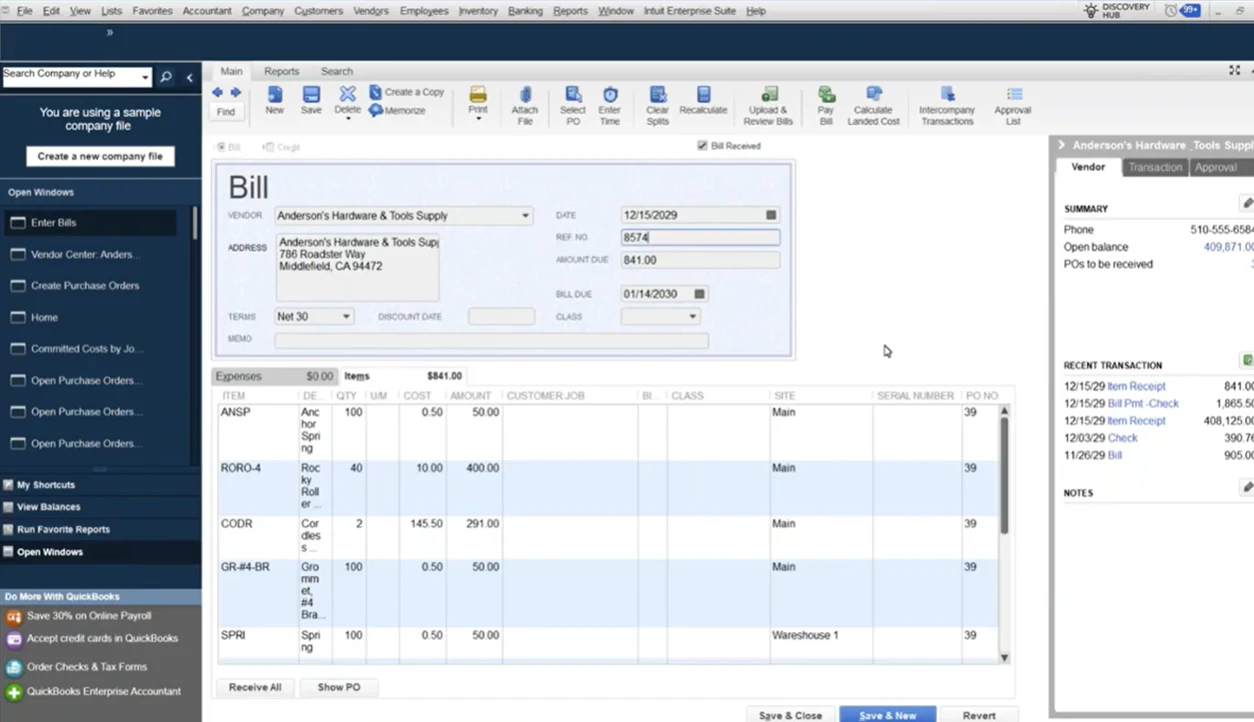
Vendor bills turn commitments into payables, so precision here is non-negotiable. When bills are created from item receipts, QuickBooks Enterprise replaces the receipt and preserves a clean audit trail.
AP Best Practices
- Always enter bills from “Enter Bill for Received Items”
- Verify quantities, rates, and freight charges before saving
- Use approval workflows for high-value bills
- Investigate mismatches between PO, receipt, and bill before posting
- Document conversations or resolutions directly on the bill
As Trisha emphasized, if a PO and receipt total $841 but the bill is $1,000, that’s a stop-and-ask-questions moment, not a post-and-fix-later situation.
Unlocking Reporting Opportunities for Smarter Decisions
You can’t improve what you can’t see. Clean purchasing data unlocks powerful reports that reveal cash requirements, expose bottlenecks, and keep spending on track.
When purchase orders, receipts, and bills are used consistently, QuickBooks Enterprise becomes a real-time control tower for purchasing.
Must-Have Purchasing Reports
- Open Purchase Orders – See every outstanding commitment
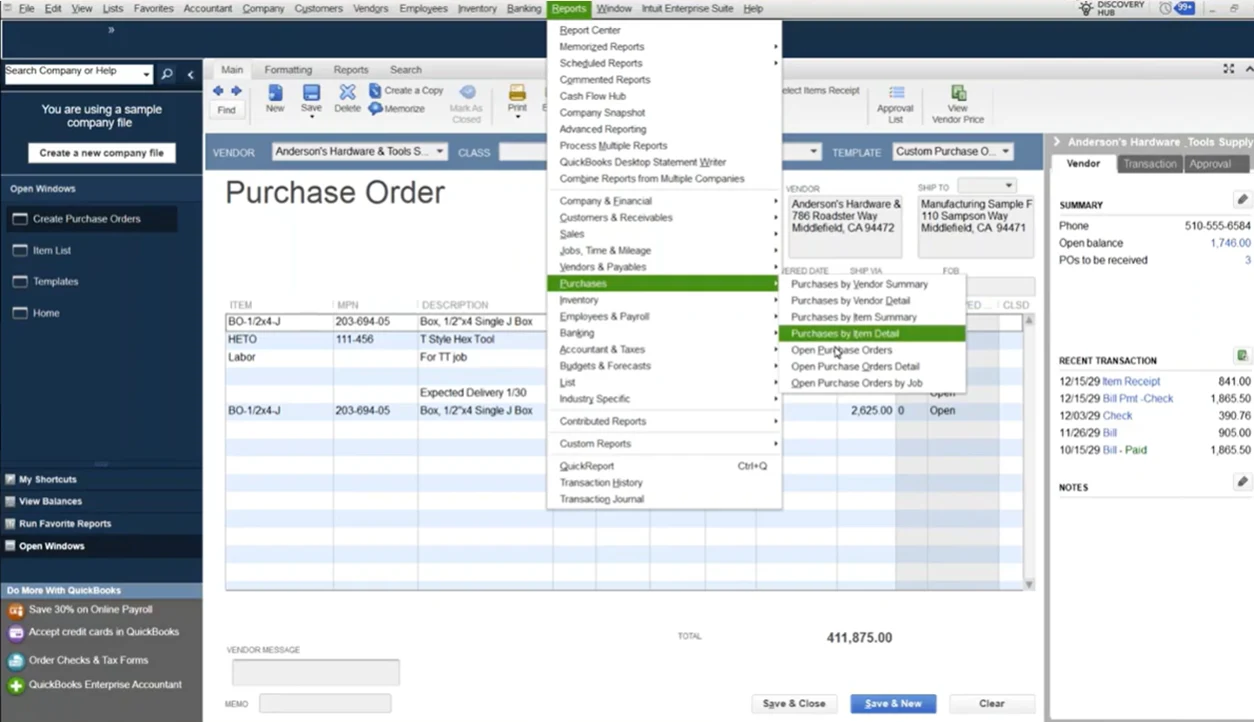
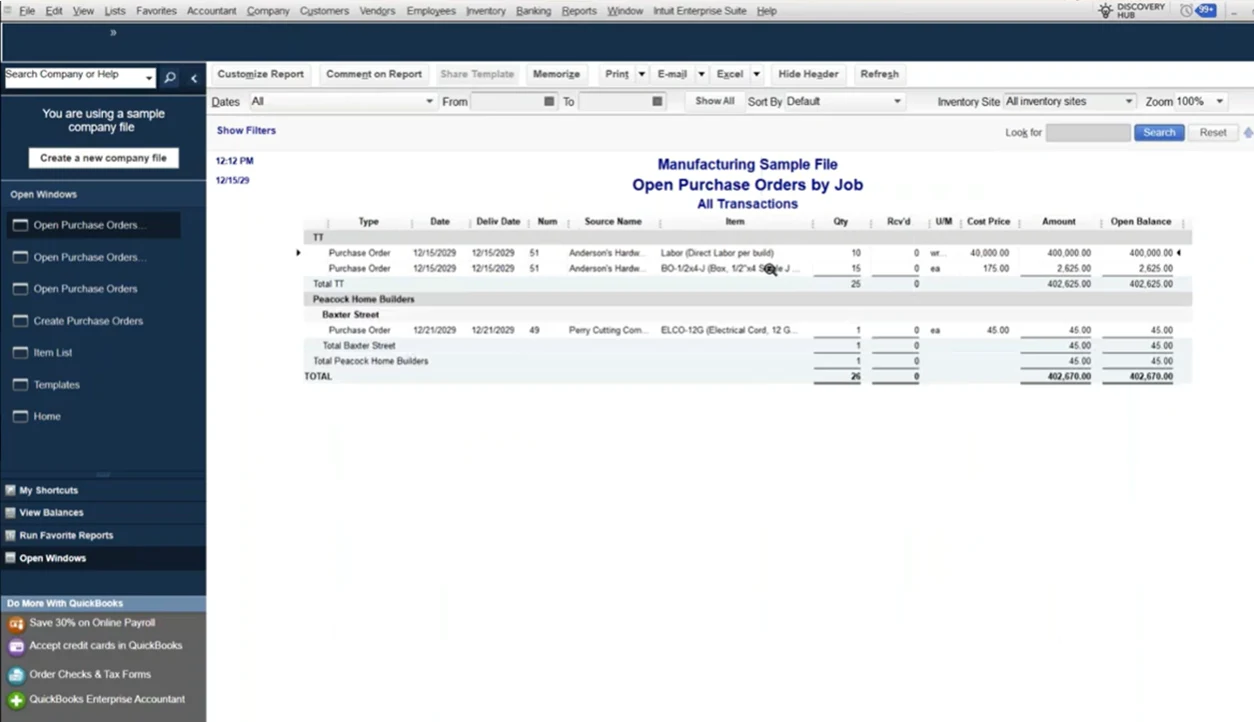
- Purchase Orders by Job – Track spending by project
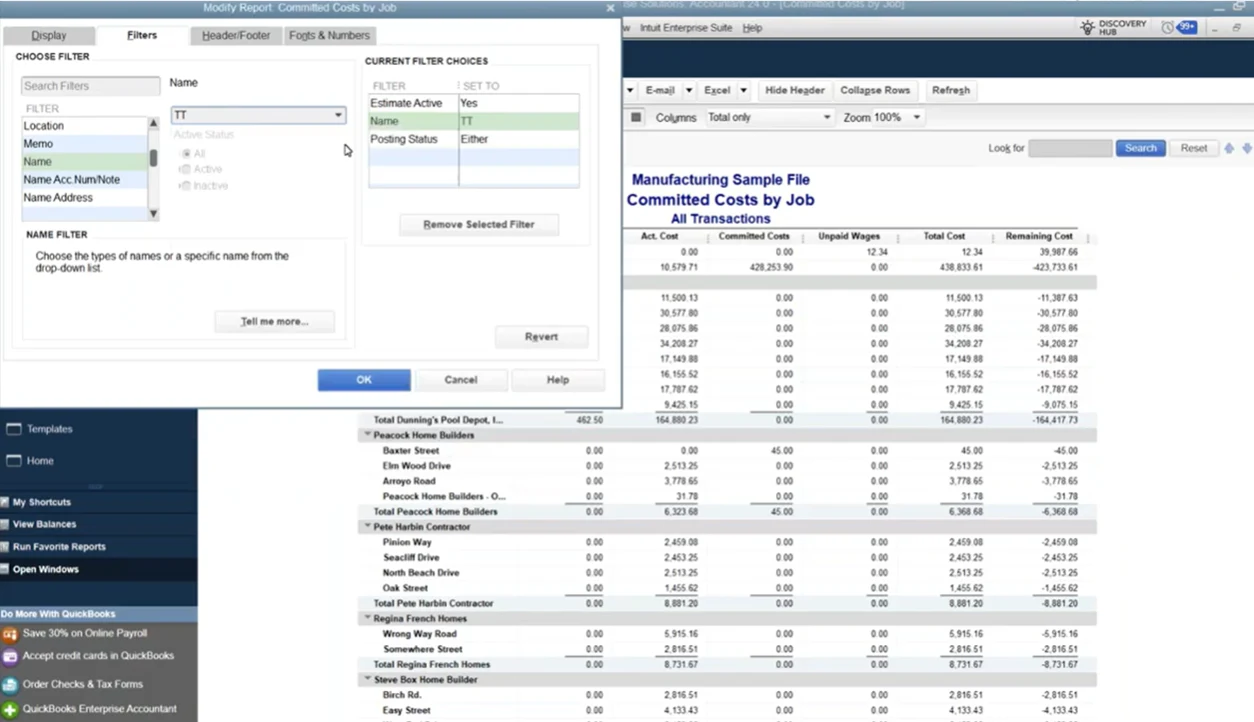
- Committed Cost by Job – Combine estimates, actuals, and open Pos
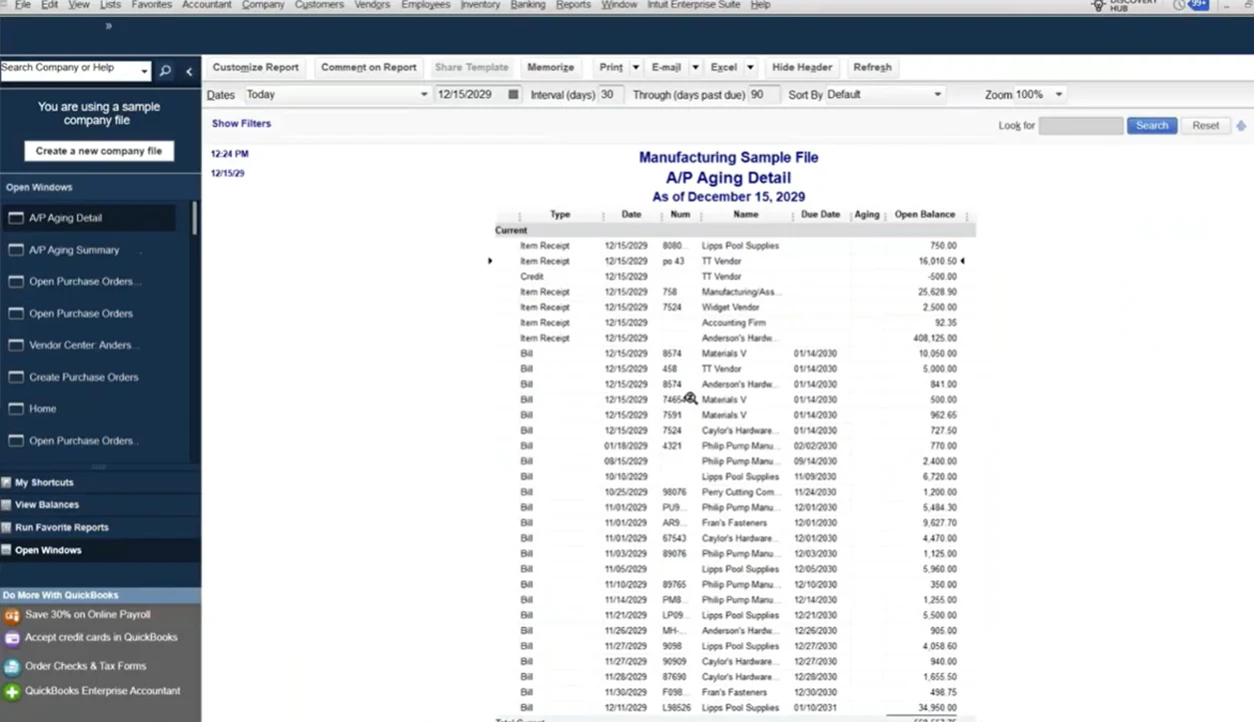
- AP Aging Detail – Prioritize vendor payments and protect cash flow
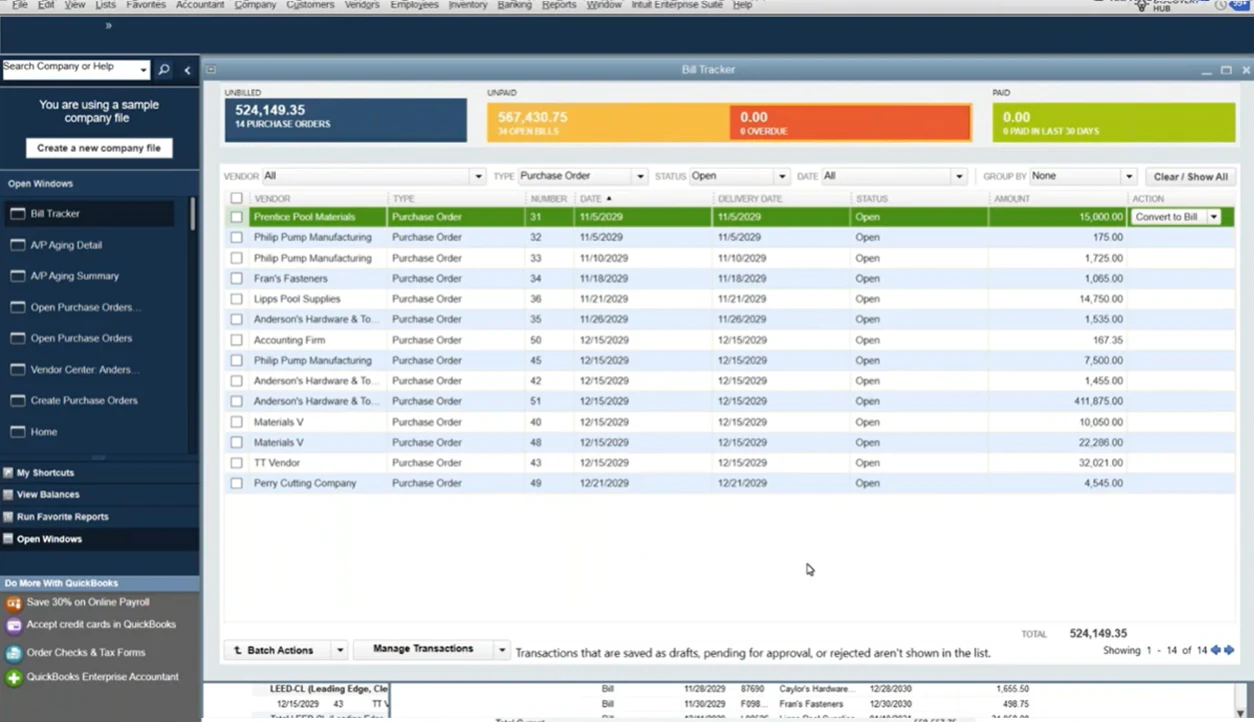
- Bill Tracker – A bird’s-eye view of POs, receipts, and bills with batch actions
- Inventory Stock Status by Item – Monitor on-hand, on-order, and back-ordered quantities
Schedule these reports or add them to dashboards to keep purchasing visible, not reactive.
Practical Tips to Optimize Your Workflow
Even well-designed workflows can break down as businesses grow. Here are high-impact steps you can take now:
- Activate purchase approval workflows to prevent surprise spending
- Customize PO templates so stakeholders instantly see key details
- Review non-posting transactions monthly (open POs, receipts, estimates)
- Use Bill Tracker batch actions to clean up stale POs
- Match bills to receipts to prevent job-cost distortions
- Implement approval tiers for high-value purchases
- Integrate QuickBooks with procurement tools when volume grows
- Train teams with short demos and quick-reference guides
- Track metrics like PO cycle time and invoice exception rates
Small improvements here compound into major gains in working-capital efficiency.
Take Control of Purchasing with Fourlane
Every dollar your organization spends is an opportunity to protect margins, strengthen vendor relationships, and fuel growth. By building disciplined purchasing workflows in QuickBooks Enterprise, you turn routine transactions into strategic insight.
From issuing purchase orders that lock in pricing, to receiving items that keep job costing accurate, to validating bills before payment, an optimized workflow puts you firmly in control of spend and cash flow.
At Fourlane, we help organizations bridge accounting expertise and QuickBooks Enterprise configuration. Whether you’re managing complex inventory, multi-project job costing, or scaling approvals across locations, our consultants design purchasing workflows that scale with your business.
Ready to optimize your QuickBooks Enterprise purchasing workflows?
When purchase orders, receiving, and vendor bills are connected properly, your purchasing workflow becomes a powerful control system for spend, cash flow, and job costing accuracy.
Contact Fourlane to streamline your QuickBooks Enterprise purchasing workflows, strengthen internal controls, and build reporting that helps leadership make faster, more confident decisions.
- Design purchasing workflows that connect purchase orders, receiving, and vendor bills
- Improve visibility into committed costs, accounts payable, and job profitability
- Build purchasing controls that prevent duplicate spending and invoice surprises