

Paper files, scattered emails, and disconnected documentation slow down accounting teams and introduce unnecessary risk. When invoices, receipts, and contracts live outside your accounting system, finding proof of a transaction can become time-consuming, especially during audits or month-end close. By transforming paper and email into digital, searchable, and audit-ready resources, you eliminate the stress of missing QuickBooks documentation and give every stakeholder instant clarity.
QuickBooks Enterprise attachments solve this problem by allowing you to link source documents directly to transactions, vendors, and customers. In other words, you can now attach QuickBooks files in seconds and keep every logo attached, every contract saved, and every receipt right where it belongs. With attachments built into your accounting workflow, your business gains faster access to documentation, stronger internal controls, and audit-ready records – all in one place, leveraging the full power of the QuickBooks attachments feature to save time and reduce errors. For a complete deleted tutorial, visit our YouTube channel to watch “How to Use Attachments in QuickBooks Enterprise”.
What Are QuickBooks Enterprise Attachments?
The attachments feature in QuickBooks Enterprise allows users to upload and link supporting documents, such as PDFs, images, Word files, and spreadsheets, directly to:
- Bills, checks, invoices, purchase orders, and journal entries, ensuring each attachment invoice QuickBooks users need is only a click away
- Customer, vendor, employee, and item records, so that attached documents are stored alongside the data you reference every day
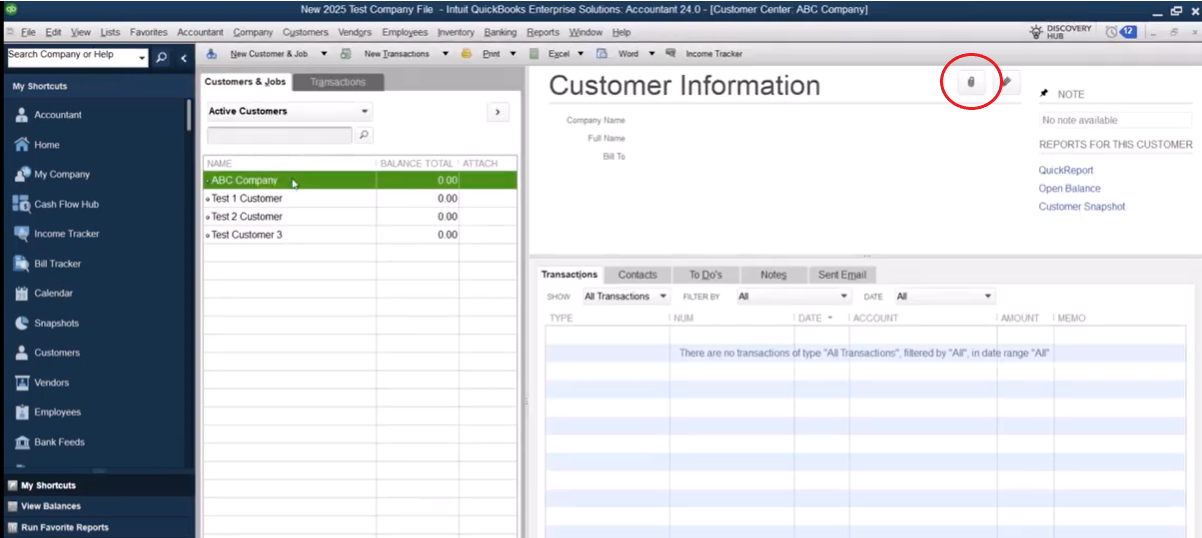
Attachments are identified by the paperclip icon throughout QuickBooks Desktop, mirroring the same visual cue you see when you select Attach in popular email apps.
Clicking the icon instantly opens the related document, eliminating the need to search shared drives, dig through email QuickBooks invoice chains, or scroll through a folder full of logo attached files.
All attachments are managed through the QuickBooks Enterprise Document Center (Company → Documents → Document Center), which acts as a centralized hub for document management, making it a true ultimate guide QuickBooks users can rely on for faster workflows.
Does Using Attachments Increase QuickBooks File Size?
A common concern with QuickBooks Desktop attachments is file size. Fortunately, attachments do not increase the size of your QuickBooks company file, so performance remains crisp even as your archive grows.
QuickBooks stores only a link to each document within the data file. The actual documents are saved in a separate Attached Documents folder outside of QuickBooks, ensuring that attached documents stored externally remain organized yet accessible. This keeps performance strong while still providing instant access to documentation and allowing you to attach file types large or small without hesitation.
Best practice: Always back up the Attached Documents folder along with your QuickBooks company file, especially when moving servers or hosting environments, to guarantee no invoice attachments or company logo attached graphics go missing in QuickBooks migrations.
Supported File Types and Where to Use Attachments
QuickBooks Enterprise supports most common business file formats, including:
- PDF – perfect for contracts, invoices, and receipts
- JPG, PNG, TIFF – ideal for expense photos, company logo files, and signed documents
- DOCX and XLSX – helpful for statements of work, vendor worksheets, and internal analyses
- Email files (Outlook formats) – useful when you need to store formal approvals or select email confirmations
Attachments can be added throughout QuickBooks Enterprise, making them valuable for multiple workflows and cementing the platform:
Bills and Vendor Records
- Supplier invoices
- Packing slips
- Purchase order acknowledgments
- W-9 forms and insurance certificates
Invoices and Customer Records
- Contracts and statements of work
- Accepted estimates and proposals
- Sales tax exemption certificates
- Scope confirmation emails
- QuickBooks company logo or company logo attached artwork for branded client packets
Banking and Journal Entries
- Deposit slips
- Loan documents
- Wire transfer confirmations
- Reconciliation support
Payroll and Expense Transactions
- Employee receipts
- Signed timesheets
- Reimbursement documentation
This flexibility makes QuickBooks Enterprise document management far more efficient and audit-friendly, allowing every attachment invoice QuickBooks needs to be pulled in moments.
How to Set Up Attachments in QuickBooks Enterprise
Follow these steps to enable and verify attachments in QuickBooks Enterprise:
- Open your QuickBooks Enterprise company file.
- Go to Company → Documents → Document Center to confirm attachments are enabled, a critical step for anyone following this guide QuickBooks attachments setup.
Attaching Documents to Transactions and Lists
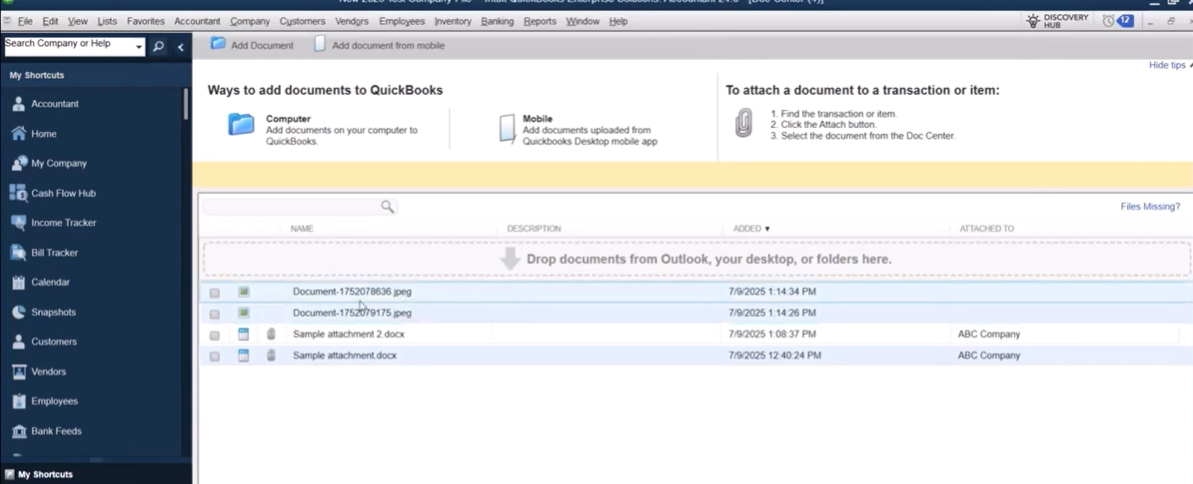
Attach Documents to Bills and Invoices
- Open the transaction.
- Click the paperclip icon.
- Upload or drag and drop the file, then select Attach to lock in that document for future reference.
Attach Documents to Customers and Vendors
- Open the customer or vendor record.
- Click Documents.
- Upload contracts, certificates, or correspondence, and don’t forget to add attachment invoice files like signed proposals or logo attached documents for branding consistency.
You can also add the Attach column to customer or vendor lists to quickly identify which records have documentation on file, ensuring no critical invoice attachments or supporting receipts are overlooked.
Using the QuickBooks Desktop Mobile App for Attachments
The QuickBooks Desktop mobile app allows users to upload documents and receipts from their phone – ideal when you need to attach QuickBooks receipts on the go or save a snapshot of a company logo on a delivery note.
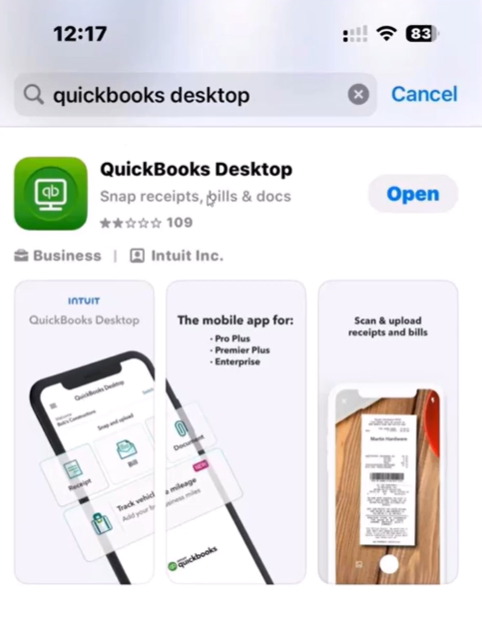
Uploaded documents flow into the QuickBooks Enterprise Document Center, where an admin or accountant can:
- Review submissions in the attachments blog QuickBooks style queue
- Enter transactions without rekeying data
- Attach documents to the correct records, making sure attached files line up with the right customers, vendors, or items
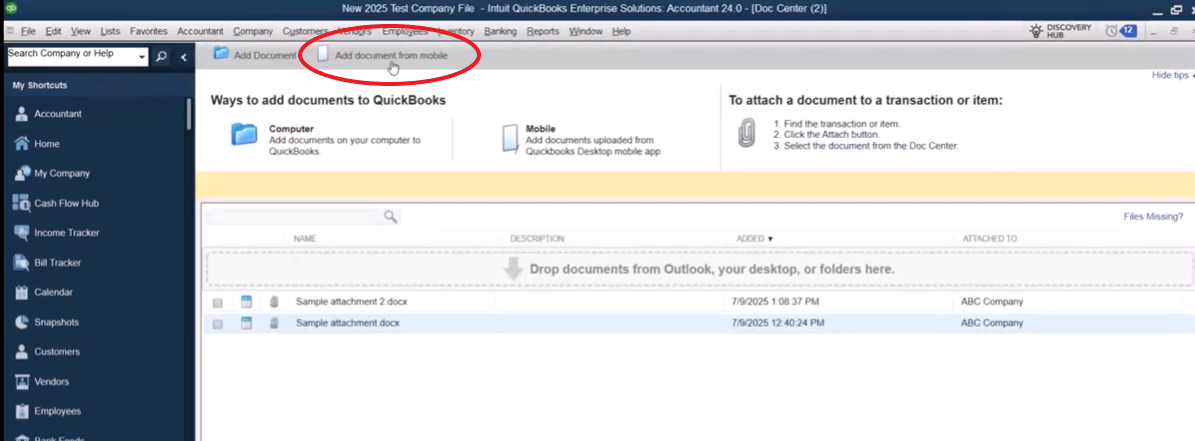
This feature reduces email clutter and creates a clean intake process for receipts and documentation, streamlining how attachments QuickBooks Desktop receives are categorized and approved.
Receipt Management and Optical Character Recognition (OCR) in QuickBooks Enterprise
QuickBooks Desktop includes Receipt Management, which uses OCR technology to extract key details from receipts, such as:
- Date
- Vendor
- Amount
- Memo
Once reviewed and saved, the receipt is automatically attached to the transaction, creating a complete audit trail with minimal manual data entry. It’s a true ultimate guide QuickBooks automation feature, helping you stay compliant without extra effort.
Best Use Cases for QuickBooks Enterprise Attachments
Businesses use QuickBooks Enterprise attachments to improve efficiency and compliance in several ways:
- Audit documentation: Attach invoices, approvals, and payment proofs to transactions for a watertight audit trail.
- Sales tax compliance: Store exemption certificates in customer records so documents stored are always handy during state reviews.
- Vendor management: Maintain W-9s and contracts for faster 1099 preparation, ensuring no missing QuickBooks data during year-end.
- Expense reimbursement: Attach receipts to employee reimbursements and even add attachment invoice photos via mobile for real-time posting.
- Job costing: Link contracts, change orders, and time sheets to jobs to keep every cost element and attached documents in sync.
- Warranty tracking: Store warranty documents with assets, so feature save documents keep equipment histories complete.
Best Practices for Organizing Attachments
To keep your QuickBooks Enterprise document center clean and searchable:
- Use consistent file naming conventions (BILL_, INV_, PO_) that quickly identify file types attach categories.
- Include transaction numbers and dates in file names so attached documents stored can be located within seconds.
- Review attachments monthly or quarterly, ensuring no attachment invoice QuickBooks records have gone astray.
- Always back up the attachments folder to safeguard every QuickBooks invoice attachment, company logo, and contract.
Avoid vague file names and ensure documents are attached at the time of entry for maximum audit protection, keeping your QuickBooks attachments compliant.
Turn QuickBooks Enterprise into a Complete System of Record
When documentation lives alongside your financial data, QuickBooks Enterprise becomes a true system of record. Attachments reduce manual searches, support compliance, and help accounting teams close faster with confidence. By embracing the QuickBooks attachments feature, your organization turns chaos into clarity, proving why this ultimate guide QuickBooks users rely on is so powerful.
If you need help optimizing QuickBooks Enterprise attachments, reviewing user permissions, or designing a standardized document workflow, Fourlane’s QuickBooks Enterprise experts can help. Our consultants are adept at implementing QuickBooks apps, configuring attachments QuickBooks Desktop settings, and ensuring every attached document tells the full story behind your numbers.
Contact Fourlane to optimize your QuickBooks Enterprise document management strategy and get more value from your accounting system.