

Modern product-based businesses are juggling more complexity than ever—multiple sales channels, fluctuating demand, growing SKU counts and customers who expect real-time updates on what’s in stock. Without the right systems, it’s easy for inventory levels to slip out of sync, leading to costly stockouts, excess carrying costs or inaccurate financials. That’s where the advanced inventory feature in QuickBooks Enterprise stands out. Designed to tackle nuanced inventory challenges, it turns your accounting platform into a robust inventory management powerhouse—no spreadsheets or third-party workarounds required.
In this blog, you’ll learn how to harness these game-changing inventory management features to bolster efficiency, boost accuracy and unlock deeper reporting insights. We’ll break down what advanced inventory really is, explore its most powerful settings, walk through everyday workflows and highlight the must-know reports that keep your operation running smoothly. Whether you oversee multiple warehouses, need airtight serial and lot tracking or want to empower your team with mobile barcode scanning, you’ll leave with a clear roadmap for taking full advantage of QuickBooks Enterprise advanced inventory—and the confidence to put it into practice.
Understanding Advanced Inventory in QuickBooks Enterprise
QuickBooks Desktop Enterprise ships with solid stock-control tools, but advanced inventory takes things several steps further. While the standard feature set lets you create items, monitor quantity on hand and issue basic purchase or sales orders, advanced inventory adds the nuance required for high-volume, multi-location or highly regulated environments. By comparison, the “enhanced” option focuses on improved costing only; advanced inventory is the full-scale solution that layers in multi-location tracking, serial and lot management, mobile barcode scanning, FIFO costing, landed cost allocation and more. In short, it’s the difference between simply recording inventory and actively orchestrating it across every stage of your operation.
Who benefits most from this upgrade? Manufacturers juggling raw materials and finished goods, distributors with regional warehouses, field-service companies stocking technician trucks, food producers managing expiration dates and any business that needs airtight traceability for warranties or recalls. If you’re regularly asking “Where is that part?” or “How much did we really spend to get it here?” advanced inventory is built for you.
Let’s look at how to switch on advanced inventory and configure the core settings that set the stage for streamlined tracking.
Activating and Navigating Advanced Inventory Settings
Getting started is straightforward, but a few deliberate steps ensure you unlock every capability from day one.
- Open your company file in QuickBooks Desktop Enterprise (Silver, Gold, Platinum or Diamond subscription levels).
- Go to Edit – Preferences, then select Items & Inventory.
- On the Company Preferences tab, check Inventory and Purchase Orders are Active to enable basic inventory functionality.
- Click the Advanced Inventory Settings button (only visible if your license includes the feature). A multi-tab window opens with options for Sites, Bins, Serial/Lot Numbers, FIFO, Barcodes, Site Operations and Landed Cost.
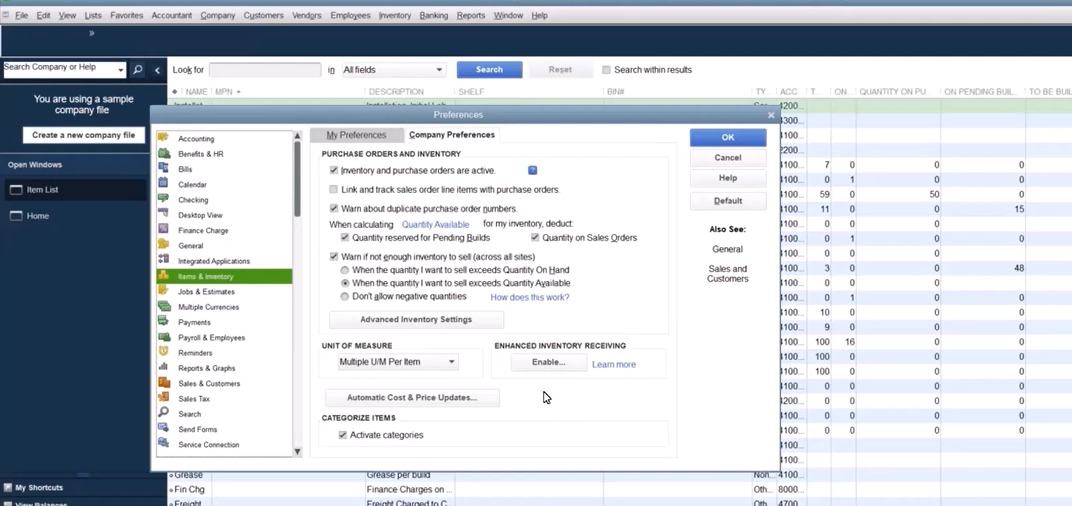
Before saving any changes, review and configure these key settings to fit your workflows:
- Multiple Locations (Sites): Define warehouses, stores, trucks or work-in-progress areas so you can see quantity on hand and reorder needs by location.
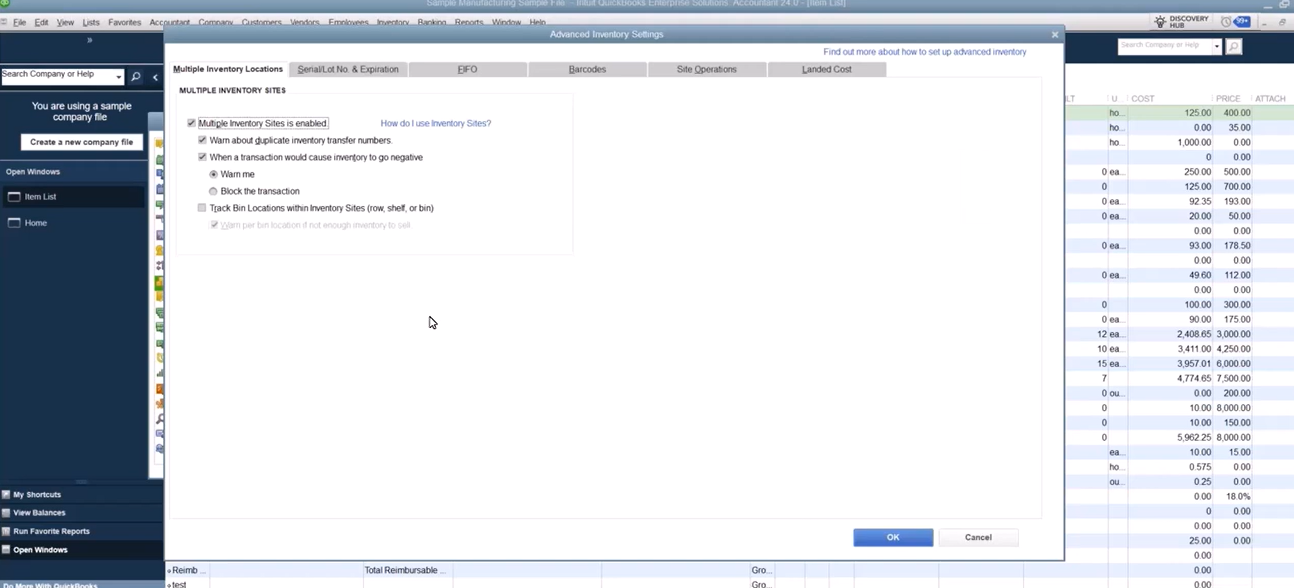
- Bin Tracking: Map shelf, rack or bin IDs within each site to speed up picking and reduce misplaced stock.
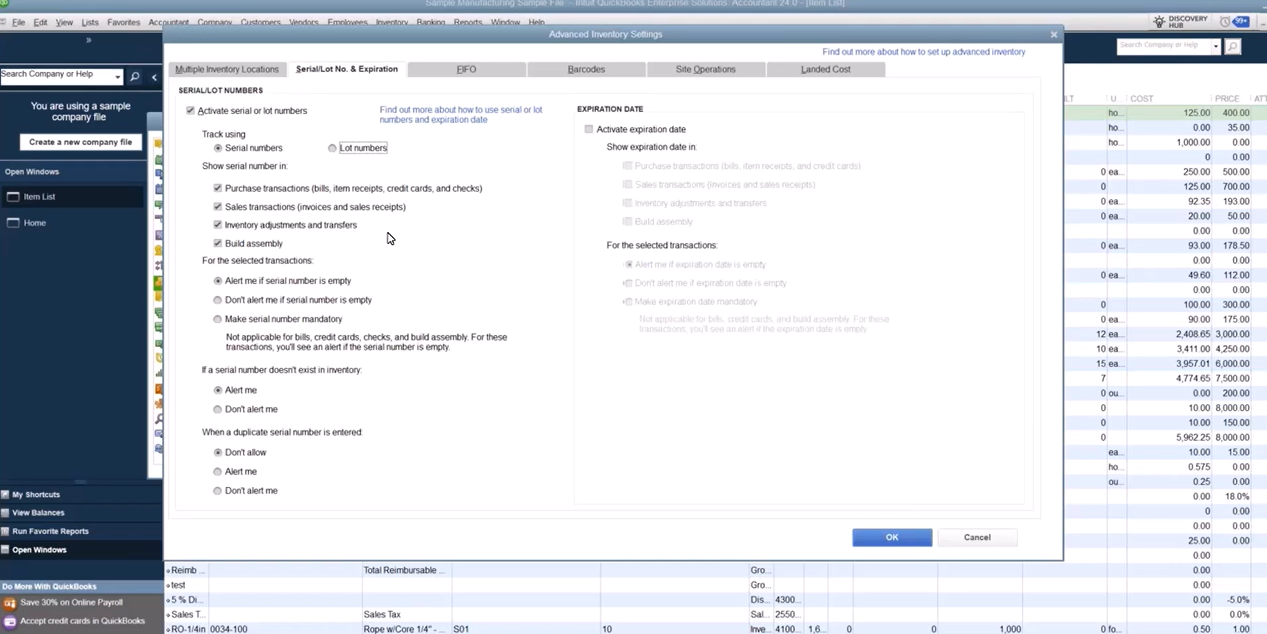
- Serial or Lot Numbers: Choose whether you’ll track individual units (serial) or grouped batches (lot). Remember, QuickBooks uses an either/or approach
- FIFO Costing: Switch from average cost to First-In, First-Out if your industry requires it for more precise valuation.
- Barcode Scanning: Enable the barcode wizard or import existing codes to streamline receiving, transfers and counts with mobile devices.
- Site Operations (Pick, Pack, Ship): Turn on mobile order fulfillment so warehouse teams can update order status in real time.
- Landed Cost: Activate cost allocation rules to spread freight, duties or insurance across items for true cost of goods sold.
With these settings dialed in, you’re ready to explore the individual capabilities that transform QuickBooks Enterprise into an end-to-end inventory management solution—starting with the feature set itself and how it plays out in everyday scenarios.
Exploring Key Advanced Inventory Features
QuickBooks Enterprise’s advanced inventory module brings a suite of high-impact tools under one roof, giving you the same capabilities once reserved for standalone inventory management software. Together, these features deliver the precision, control and scalability you need to keep pace with fast-moving orders and complex supply chains.
At a glance, here’s what makes the advanced inventory feature set so powerful:
- Multi-location and bin tracking keep quantities crystal-clear across warehouses, retail stores, trucks and even individual shelves.
- Serial and lot number tracking provide end-to-end traceability for warranty claims, recalls or regulated products.
- Built-in barcode scanning eliminates manual data entry and posts real-time updates as inventory moves.
- Landed cost and FIFO costing ensure every penny of freight, duty and tariff expense flows into your cost of goods sold for rock-solid margins.
The following sub-sections unpack each capability in detail and show exactly how they translate into everyday results.
Tracking Inventory Across Multiple Locations
Controlling stock across more than one site can feel like herding cats—unless your system is purpose-built for it.
- Create location “sites” for each warehouse, retail outlet, truck or staging area in Advanced Inventory Settings.
- Assign incoming items to a site at the point of receipt, transfer or sale.
- Use bin tracking to pinpoint where each SKU lives inside the site—down to aisle, shelf or bin level.
- Generate location-specific availability, reorder and valuation reports so purchasing and warehouse teams know exactly what’s running low and where.
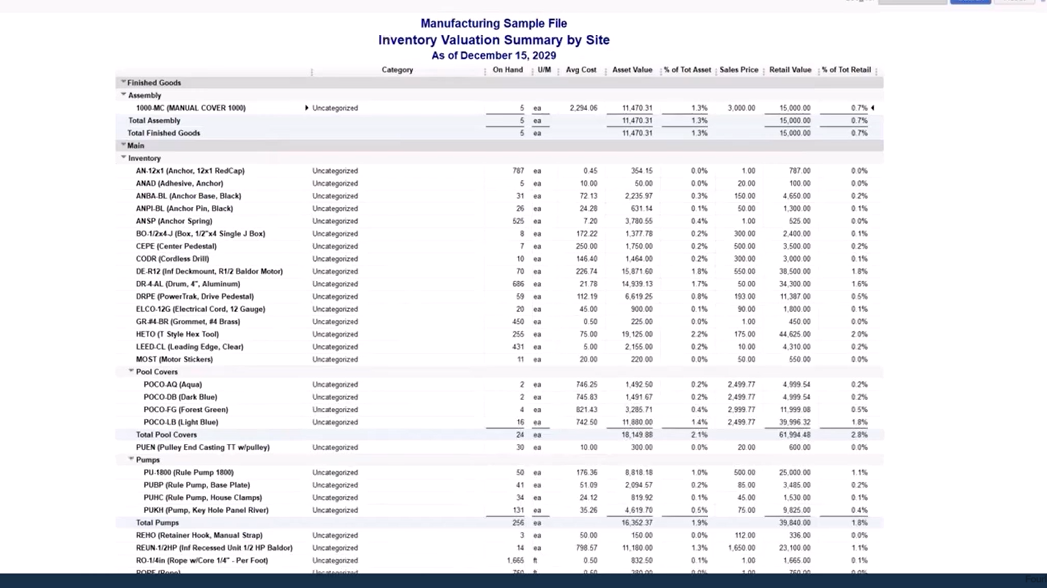
Practical example: Picture an HVAC service company with a central warehouse and five technician trucks. By treating each truck as a mobile site, the dispatcher can see that Truck 3 is the only unit carrying a particular blower motor, then route the closest tech to an emergency job without cannibalizing another van’s stock. Meanwhile, the warehouse can schedule a transfer to restock Truck 3 after the repair—all tracked, valued and reported in real time.
Serial and Lot Number Tracking
Not every item needs a unique ID, but when traceability matters, advanced inventory steps in. You choose between serial or lot tracking at the item level:
- Serial numbers follow individual units—ideal for high-value equipment, electronics or anything with a warranty.
- Lot numbers group a batch—perfect for food, chemicals or any product with expiration dates.
Because QuickBooks supports either option (not both simultaneously on the same item), decide which method aligns with your compliance or customer-service needs. Once enabled, QuickBooks will require a valid serial or lot entry during every receipt, transfer, adjustment and sale—guaranteeing a clear audit trail.
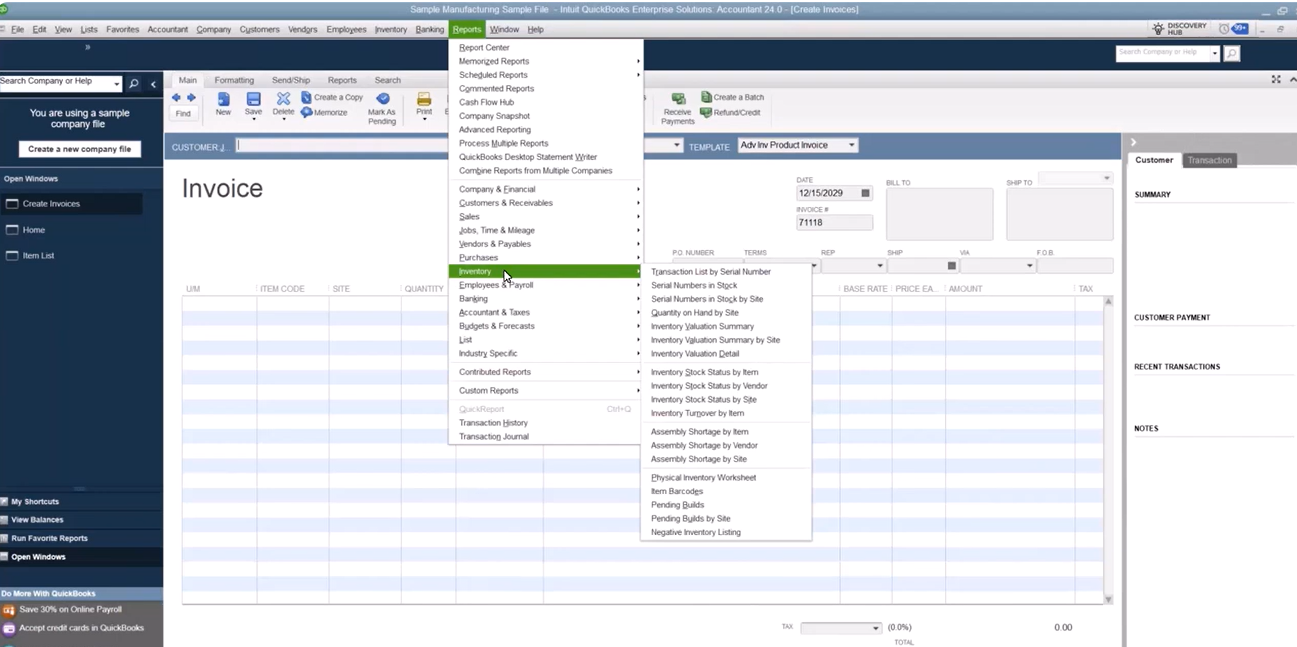
Use-case spotlight: A medical-device distributor enables serial tracking so every implanted unit is tied to a patient’s invoice. If the manufacturer issues a recall, staff can instantly run a Serial Number in Stock or Sales by Serial Number report, identify affected customers and launch a targeted outreach campaign—minimizing risk and maximizing customer trust.
Barcode Scanning and Mobile Inventory Management
Barcode functionality turns smartphones, tablets or dedicated scanners into rapid-fire data-capture devices that sync directly with your company file. Here’s how it works:
- Enable barcode scanning in Advanced Inventory Settings and decide whether to import existing UPC/SKU codes or auto-generate codes via the built-in wizard.
- Pair your mobile devices or USB scanners with QuickBooks Desktop Enterprise or the Warehouse app.
- Scan items when receiving, picking, packing, shipping or counting cycle inventory—the system records the transaction instantly.
The benefits of mobile barcode scanning go beyond speed; they reshape day-to-day accuracy and efficiency:
- Real-time quantity updates prevent overselling and stockouts.
- Fewer keystrokes translate to lower data-entry errors and faster training for new staff.
- Hands-free workflows free warehouse teams to focus on moving goods, not juggling clipboards.
- Instant validation alerts flag invalid items, duplicate serials or negative-stock situations on the spot.
- Seamless integration means no exporting or batch uploads—data flows straight into your general ledger.
Managing Landed Costs and FIFO Tracking
Rising tariffs, surcharges and freight hikes can turn stable margins into guessing games unless you capture every expense in real time. The landed cost feature makes that easy:
- Allocate non-inventory costs—freight, duty, insurance or brokerage fees—across items on a purchase receipt.
- Choose allocation by value, weight, quantity or manually set percentages for ultimate control.
- See true item costs reflected in your inventory valuation and cost of goods sold, keeping margins honest at every sale.
When paired with FIFO costing, you gain even sharper financial accuracy. Activating FIFO instructs QuickBooks to relieve inventory using the oldest layer of cost first, mirroring how many warehouses physically rotate stock. For example, a food distributor can ensure that older, lower-cost pallets are depleted on paper before newer, pricier ones—aligning inventory valuation with real-world flow and ensuring compliance with industry accounting standards.
With these cornerstone features in place, you’re equipped to build rock-solid workflows that move inventory from purchase to payment without a hitch. Here’s how to weave them together in day-to-day operations.
Building Effective Inventory Workflows in QuickBooks Enterprise
Even the most powerful features can fall short without consistent, well-defined processes. By aligning your daily routines with our advanced inventory in QuickBooks Enterprise, you’ll ensure every item’s journey – from purchase to sale – is captured accurately, reflected in real time and ready for analysis. The two cornerstone workflows you’ll use most often are sales order processing and inventory adjustments or transfers. Nail these, and you set the stage for smooth operations and rock-solid financials that mirror reality.
Sales Order to Invoice: Workflow Best Practices
A sales order in QuickBooks Enterprise is non-posting; it reserves inventory but doesn’t move quantities or affect the general ledger until you create the invoice. Treating each touchpoint with intention preserves data integrity and prevents stock discrepancies.
- Enter the sales order, selecting the correct customer, item and promised quantity.
- Confirm or assign site and bin details only if you know where stock will be pulled from; otherwise leave them blank for the warehouse team.
- Convert the sales order to an invoice after the pick, pack and ship steps are complete—this is when inventory levels and cost of goods sold update automatically.
- Capture serial or lot numbers during invoicing to lock in full traceability.
- Review the linked transaction chain (sales order – invoice) so finance, sales and warehouse teams all see the same source of truth.
Practical tip: Train staff to flag negative-on-hand warnings immediately. If a sales order tries to reserve more items than are available, pause and investigate—don’t override. This single habit prevents downstream adjustments, returns and customer-service headaches.
Inventory Adjustments and Transfers
Even with airtight processes, real-world hiccups happen—breakage, shrinkage, miscounts or simple re-slotting between locations. Advanced inventory equips you with the tools to correct issues swiftly while preserving audit trails.
Step-by-step adjustments and transfers:
- Navigate to Inventory Center – Adjust Quantity/Value on Hand.
- Choose “Quantity and Total Value” for write-offs, cycle counts or cost corrections, or pick “Serial Number” when you need to replace or retire a specific unit.
- Select the correct adjustment account (often Cost of Goods Sold, Inventory Shrinkage or a custom “Damage & Loss” account) to keep your P&L tidy.
- For transfers, open Inventory – Transfer Inventory; specify the “from” and “to” sites and, if enabled, the originating and destination bins.
- Save the transaction—QuickBooks immediately updates quantity on hand, average or FIFO cost layers and availability by site.
Use-case in action: A beverage distributor spots a pallet damaged in transit. The warehouse manager scans each affected case, records an adjustment to write off the quantity and transfers the remaining undamaged stock to a “QC Hold” site for inspection. Every move is time-stamped, costed and visible to accounting, ensuring compliance and accurate reporting at month-end.
With these workflows embedded, your teams will capture every movement the moment it happens. Robust reporting transforms that clean data into insights you can put to work.
Maximizing Reporting and Insights with Advanced Inventory
Accurate data is only valuable if you can transform it into actionable insights. Turning on advanced inventory unlocks a library of specialized reports that illuminate stock positions, cost layers and fulfillment performance across every site. With a few clicks, you can pinpoint slow-moving SKUs, validate margins or verify that serial-tracked items reached the right customers. By weaving these reports into routine reviews—weekly operations huddles, month-end close or annual planning—you’ll shift from reactive firefighting to proactive decision-making and long-term optimization.
Essential Inventory Reports and How to Use Them
Before diving in, remember that each report reflects the integrity of your underlying data. The more disciplined your workflows, the more reliable these snapshots become.
Here are the must-have reports and how they drive smarter choices:
- Serial Number in Stock: Reveals every serial-tracked unit currently on hand, including its site and bin. Use this before shipping high-value items or managing recalls to ensure you select valid, available units.
- Sales by Serial Number or Lot Number: Displays which customers received specific serials or lots. Crucial for warranty verifications, product recalls or service follow-ups.
- Inventory Valuation by Site: Breaks down quantity and dollar value per location. Ideal for balancing stocking levels between warehouses, trucks or retail stores and identifying surplus inventory that can be transferred or liquidated.
- Stock Status by Item: Compares quantity on hand, committed and on purchase order against your reorder points. This is your purchasing playbook—quickly filter for items flagged “to re-order” and generate POs directly.
- Inventory Adjustment History: Lists all quantity or value changes, including user, date, reason code and affected accounts. Review monthly to spot patterns in shrinkage, damage or data-entry errors.
- FIFO Cost Layer Report: Details each receipt’s cost layer and the sequence in which items are relieved under FIFO. Leverage this for audit support and to validate that your cost of goods sold aligns with actual purchase prices.
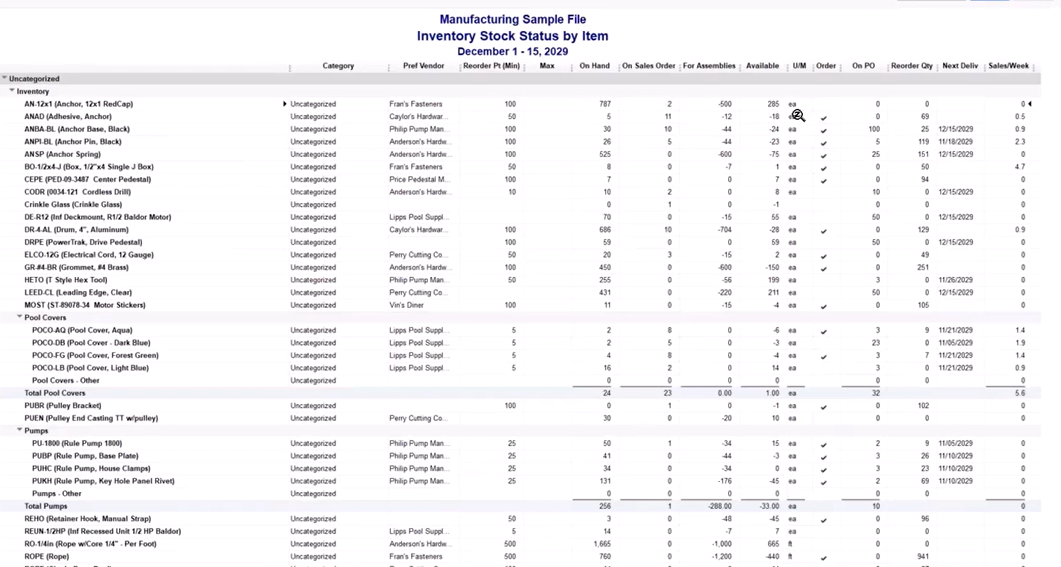
Interpreting the data:
- Trend analysis—Compare valuation or stock status reports month over month to detect creeping overstock or consistent backorders.
- Margin protection—Cross-reference FIFO cost layers with sales margins to ensure rising landed costs don’t silently erode profitability.
- Performance improvement—Use adjustment histories to uncover training gaps or process bottlenecks behind frequent write-offs.
- Cash-flow planning—Align reorder suggestions with sales forecasts to maintain optimal inventory levels without tying up excess capital.
With these reports on your dashboard and a cadence for reviewing them, you’ll have a real-time pulse on everything from warehouse efficiency to financial health—empowering smarter, faster decisions that keep your business ahead of demand.
Watch a replay of the webinar to see Advanced Inventory in action!

Take Your Inventory Management to the Next Level
Mastering the advanced inventory feature set in QuickBooks Enterprise turns inventory from a potential liability into a strategic asset. When you can track every unit by site, bin, serial number or lot, allocate true landed costs and update quantities in real time with barcode scanning, you unlock sharper margins, faster fulfillment and airtight financials. The result is a more resilient operation—one that scales smoothly across new warehouses, product lines or sales channels without sacrificing accuracy or efficiency.
Ready to put these capabilities to work? Contact our team for expert guidance on implementing advanced inventory in QuickBooks Enterprise. We’ll help you fine-tune settings, streamline workflows and build the reports that power smarter decisions—so your business can grow with confidence.