

QuickBooks job costing reports answer a question your profit and loss statement cannot: Did this specific job make money? Your P&L shows how the company performed overall. Job costing shows which projects carried the business, which quietly lost money, and how much you should be billing.
For construction firms, landscaping companies, service contractors, and other project-based businesses, these reports turn QuickBooks into a practical tool for monitoring project profitability, estimating accuracy, work in progress, and committed costs.
This guide explains the major QuickBooks job costing reports, what each one answers, what the columns mean, and which default filters can quietly distort your results.
- Turn on estimates in QuickBooks
- Job Profitability Report
- Job WIP Summary Report
- Job Estimates vs. Actuals
- Committed Costs by Job
- Additional job costing reports
- Which report should you run?
- QuickBooks job costing FAQ
Turn on Estimates in QuickBooks
Most QuickBooks job costing reports compare estimated amounts with actual activity. Without estimates enabled, several reports will return no results.
How to enable estimates in QuickBooks
- Go to Edit, then select Preferences.
- Select Jobs & Estimates.
- Open the Company Preferences tab.
- Set Do You Create Estimates? to Yes.
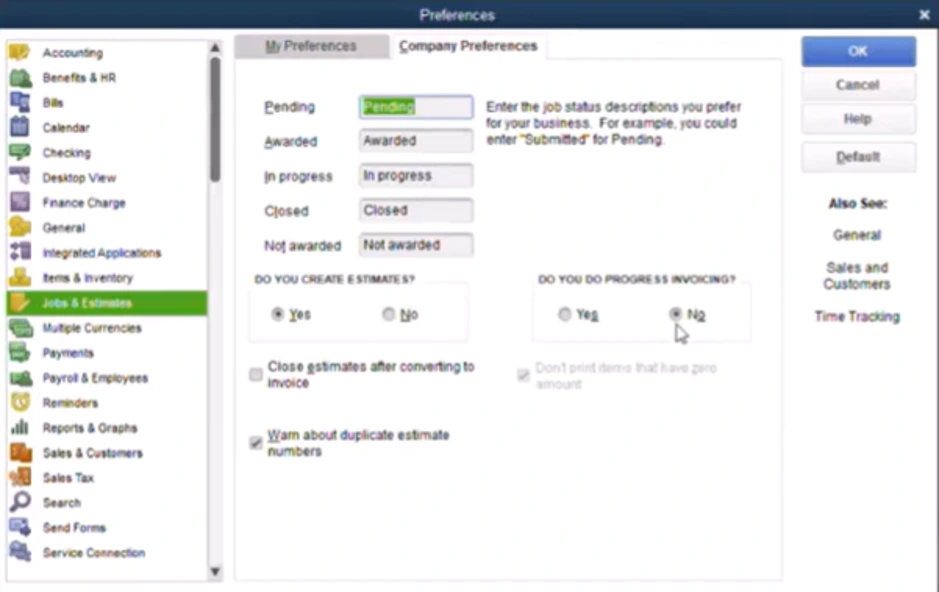
While you are there, review two related settings:
- Progress invoicing: Enable this option when you bill against an estimate in phases rather than invoicing the full amount at once.
- Automatically close estimates when converted to an invoice: Enable this option to reduce the need for manual estimate cleanup.
These reports are generally available under Reports > Jobs, Time & Mileage.

Job Profitability Report: Summary and Detail
The question it answers: Did we make money on this job?
The QuickBooks Job Profitability Report shows profit by project in both dollars and percentages. It is one of the fastest ways to identify which jobs and customers produce the strongest return on cost.
This report includes financially posted transactions such as invoices, credit memos, bills, vendor credits, checks, and credit card expenses. Non-posting transactions such as estimates, sales orders, and purchase orders are excluded.
Job Profitability Summary vs. Detail
- Job Profitability Summary: Provides a high-level view of every job, including total actual cost, total revenue, and the difference between the two.
- Job Profitability Detail: Shows one job at a time and breaks activity down by each item purchased or sold, which can correspond with your cost codes.

Use the report as a data quality check
In addition to measuring job performance, the report can help uncover bookkeeping problems before they compound. Look for:
- One-sided entries created by complex distributions
- Posting errors and misapplied costs
- Jobs with revenue but no related cost, or costs with no revenue
- Unexpected charges that do not belong to the job
Recommended Job Profitability Report settings
| Setting | Default | Recommended Action |
|---|---|---|
| Date range | All Dates | Remember that filtering narrows transaction dates, not the full lifespan of the project. |
| % Difference column | Off | Add it so jobs can be compared by percentage, not just raw dollars. |
| Accounts filter | P&L accounts only | Leave this setting unchanged when reviewing true profitability. |
| Names filter | All Names | Change it to Customers & Jobs to exclude unrelated or inactive names. |
| Job Status filter | Not applied | Filter by Pending, Awarded, In Progress, Closed, or Not Awarded. |

If inactive customers appear on the report, the Names filter is usually the reason. Change it from All Names to Customers & Jobs, choose the active records you need, and memorize the report so the setting persists.

The Job Status filter is also useful for estimating analysis. For example, filtering for Not Awarded jobs across a date range can help quantify lost work and identify patterns in your bidding process.
One limitation of the detail report is that multiple selected jobs are aggregated by item. QuickBooks does not separate each selected job into its own section, which can be useful for customer-level analysis but misleading when you expect a project-by-project breakdown.
Job WIP Summary Report
The question it answers: How much should I bill this month?
The Job WIP Summary Report compares estimated costs with actual costs, calculates earned revenue, and measures that amount against what has already been invoiced. It focuses on jobs that are still in progress and not yet fully billed.

What each WIP report column means
| Column | Definition |
|---|---|
| Estimated Cost | The amount budgeted to complete the job. |
| Actual Cost | Posted bills, checks, and credit card expenses assigned to the job. |
| % Complete | Actual cost divided by estimated cost. |
| Estimated Revenue | Revenue from the estimate after markup. |
| Earned Revenue | Estimated revenue multiplied by the percentage complete. |
| Actual Revenue | Invoices and credit memos posted to the job. |
| Over/Under Billed | The difference between earned revenue and actual revenue, which serves as a billing signal. |
WIP report limitations
- Summary only: QuickBooks does not provide a detail version of this report.
- No estimate means no row: A job without an estimate will not appear because there is no budget to compare with actual costs.
- Percent complete caps at 100%: A job that exceeds its estimated cost may still display as 100% complete, which can hide the size of the overrun.
- Accrual basis only: QuickBooks job costing reports cannot be switched to cash basis.
The report typically includes active estimates, active customers and jobs, and posted bills, checks, invoices, and credit memos.
Keep WIP reporting accurate
Once a month, mark estimates inactive for completed or lost jobs and update each job status. Stale estimates can distort the WIP report and other estimate-based reports.
Job Estimates vs. Actuals Report
The question it answers: How accurate is our estimating?
This report compares estimated cost with actual cost and estimated revenue with actual revenue. That dual view separates the cost side from the revenue side, making it one of the clearest ways to evaluate how accurately your company prices bids and quotes.
- Summary: Provides a snapshot of all open and active jobs.
- Detail: Shows one job line by line by cost code, including where each item ran over or under budget.
Add the percentage difference columns on both the cost and revenue sides to make variances easier to compare.

Summary and detail use different account filters
The summary report filters on profit and loss accounts. The detail report includes all accounts, including balance sheet accounts.
This is useful when customer deposits are posted to an Other Current Liabilities account. Those deposits can appear in the detail report, helping you see which customers prepaid and which jobs the payments relate to.
Like the WIP report, the Estimates vs. Actuals Report requires an estimate before a job will appear.
Committed Costs by Job Report
The question it answers: What have I spent, and what am I already obligated to spend?
This is a forward-looking job costing report. In addition to estimated and actual costs, it includes future obligations such as:
- Open purchase orders assigned to a job for materials, subcontractors, or services
- Employee time entries that have not yet been processed through payroll
The Committed Costs by Job Report is available in QuickBooks Enterprise Contractor Edition and Intuit Enterprise Suite.

What each committed cost column means
| Column | Definition |
|---|---|
| Estimate | Budgeted cost for the job. |
| Actual Cost | Posted bills, checks, and credit card charges. |
| Committed Cost | Open purchase orders assigned to the job. |
| Unpaid Wages | Time entries waiting to be processed through payroll. |
| Total Cost | Actual cost plus committed cost plus unpaid wages. |
| Remaining Cost | The amount of budget still available. |
Once payroll is processed, unpaid wages move into actual costs. Until then, the report helps you see upcoming job costs before they are posted.
Four issues that can break the report
- Purchase orders must be assigned to a job. A purchase order line without a job will not appear.
- Item receipts are excluded from actual cost. Bills, checks, and credit card transactions post as actual cost, but an item receipt alone does not.
- An estimate is not required. The report can populate without one, but Remaining Cost will be negative because there is no budget to compare with the costs.
- Estimated revenue does not populate. The report includes actual revenue but not anticipated revenue from the estimate.
How inventory affects job costs in QuickBooks
Inventory purchased on a bill initially posts to a balance sheet account. The cost does not move to the job until the item is invoiced and QuickBooks relieves inventory, debiting cost of goods sold and crediting the inventory asset.
Until that invoice is created, the inventory cost may be missing from your job costing reports.
Additional QuickBooks Job Costing Reports
Item Profitability and Item Estimates vs. Actuals

These reports analyze performance by item or cost code rather than by job. Use them to identify profitable services, find cost codes that are consistently estimated incorrectly, and improve pricing for future bids.
Estimates by Job

This report provides a high-level view of open estimates and projected sales by job. Its accuracy depends on closing estimates for completed and lost work. It can also show the prepayment open balance, helping you track customer deposits through the job lifecycle.
Unbilled Costs by Job

This report is critical for reimbursable costs. When entering a bill, assign a job on the Items tab and mark the cost as billable. QuickBooks will track it until it is added to an invoice.
Review this report before closing a job so your business does not absorb costs the customer agreed to reimburse. The report can also include journal entries.
Time by Job: Summary and Detail

The summary report shows services performed and hours accumulated by job. The detail report adds the employee or team member, showing who performed each service and how many hours were recorded.
The detail report may default to the current period instead of All Dates, so confirm the date range before evaluating the results.
For more training, review Fourlane’s Job Costing and Construction Accounting course.
Which QuickBooks Job Costing Report Should You Run?
| If You Need to Know | Run This Report |
|---|---|
| Did we make money on the completed job? | Job Profitability |
| How much should I bill this month? | Job WIP Summary |
| How accurate is our estimating? | Job Estimates vs. Actuals |
| What are we already committed to spend? | Committed Costs by Job |
| Which items and cost codes perform best? | Item Profitability |
| What is currently in the sales pipeline? | Estimates by Job |
| Which reimbursable costs have not been billed? | Unbilled Costs by Job |
| Who worked on each job and for how long? | Time by Job |
The three reports most commonly confused are:
- Job WIP Summary: Are active projects on track, and what should we bill?
- Job Estimates vs. Actuals: How accurate is our pricing and estimating?
- Job Profitability: Did we make money after the job was completed?
QuickBooks Job Costing Reports FAQ
Why is my QuickBooks Job Profitability Report showing inactive customers?
The Names filter defaults to All Names, which can include inactive records. Customize the report, change the filter to Customers & Jobs, and select active customers only. Memorize the report to preserve the setting.
Why is my job missing from the WIP Summary Report?
The Job WIP Summary Report only displays jobs that have an estimate in QuickBooks. Without an estimate, there is no budget to compare with actual costs, so the job is excluded.
Can I run QuickBooks job costing reports on a cash basis?
No. QuickBooks job costing reports run on an accrual basis and do not include a cash-basis toggle.
Which QuickBooks version has the Committed Costs by Job Report?
The Committed Costs by Job Report is available in QuickBooks Enterprise and Intuit Enterprise Suite.
Why do purchase orders not appear on the committed costs report?
Each purchase order line must be assigned to a specific job. A purchase order without a job assignment will not appear on the Committed Costs by Job Report.
Why is the Remaining Cost column negative?
The report can populate without an estimate. When no budget exists, QuickBooks has nothing to subtract costs from, so Remaining Cost appears as a negative number. Enter an estimate for the job to correct it.
Do estimates appear on QuickBooks job costing reports?
Yes. Estimates are the main non-posting transaction reflected in QuickBooks job reports. Sales orders and purchase orders are generally excluded, except for open purchase orders included in the Committed Costs by Job Report.
Why are inventory costs missing from the job?
Inventory posts to a balance sheet account when purchased. The cost moves to the job only after the item is invoiced and QuickBooks relieves inventory to cost of goods sold.
Your Reports Are Only as Accurate as Your Data
QuickBooks job costing can provide powerful project-level insight, but no report can compensate for incomplete inputs.
Enter estimates, assign jobs to purchase orders and bills, keep job statuses current, and close estimates for completed or lost work each month. When those habits are consistent, your reports can show where money is going on every project.
Need Help With QuickBooks Job Costing?
Accurate job costing depends on the right QuickBooks setup, clean data, and consistent project workflows.
Work with a Fourlane QuickBooks Enterprise expert to improve your job costing setup, reporting, and day-to-day accounting processes.
- Job costing setup and workflow review
- Estimate, WIP, and profitability reporting
- Cost code and item list cleanup
- QuickBooks Enterprise consulting and support