

Negative inventory is one of the most damaging inventory problems in QuickBooks Desktop Enterprise. It can make reports stop matching, cause inventory values to change unexpectedly, and leave your team questioning whether it can trust the company’s financial statements.
Negative inventory in QuickBooks Enterprise occurs when you invoice or sell inventory items before receiving them into the system. Although QuickBooks allows the transaction, it can distort cost of goods sold, gross margin, inventory valuation, and the balance sheet. :contentReference[oaicite:0]{index=0}
This guide explains what negative inventory is, why it creates accounting problems, how to correct it, and which workflows can prevent it from happening again.
Key Takeaways
- Negative inventory occurs when you invoice an item before receiving it, creating a negative quantity on hand.
- QuickBooks may use an outdated or zero item cost, which distorts cost of goods sold, gross margin, and the balance sheet.
- The correct workflow is sales order, purchase order, inventory receipt, and then invoice.
- Negative inventory must be corrected when the item originally went below zero, not only as of today.
- Proper inventory preferences, locked prior periods, and monthly reconciliations can help prevent future problems.
Table of Contents
- What Is Negative Inventory in QuickBooks?
- What Causes Negative Inventory?
- How Negative Inventory Affects Financial Reports
- The Correct QuickBooks Inventory Workflow
- A Real-World Cautionary Tale
- How to Fix Negative Inventory
- How to Prevent Negative Inventory
- Frequently Asked Questions
What Is Negative Inventory in QuickBooks Enterprise?
Negative inventory means an inventory item’s quantity on hand has fallen below zero. This typically happens when a business invoices or sells an item before the corresponding inventory has been received into QuickBooks.
For example, a product may physically be sitting in the warehouse, but the bill or item receipt has not yet been entered. If an employee creates an invoice for that product, QuickBooks reduces the recorded quantity even though the system does not show that the item was received.
The invoice saves, the transaction posts, and the sale may look correct on the surface. However, the accounting file now shows that the business sold an item it did not have on its books.
This issue applies specifically to inventory items and inventory assemblies because these item types track both quantity and asset value. Service and non-inventory items do not create the same negative-inventory problem.
What Causes Negative Inventory? Posting vs. Non-Posting Transactions
To understand what causes negative inventory, you first need to understand which QuickBooks transactions create a financial impact.
Sales Orders Are Non-Posting
When you create and save a sales order, there is no immediate financial impact. The sales order represents a commitment to fulfill a product or service for a customer.
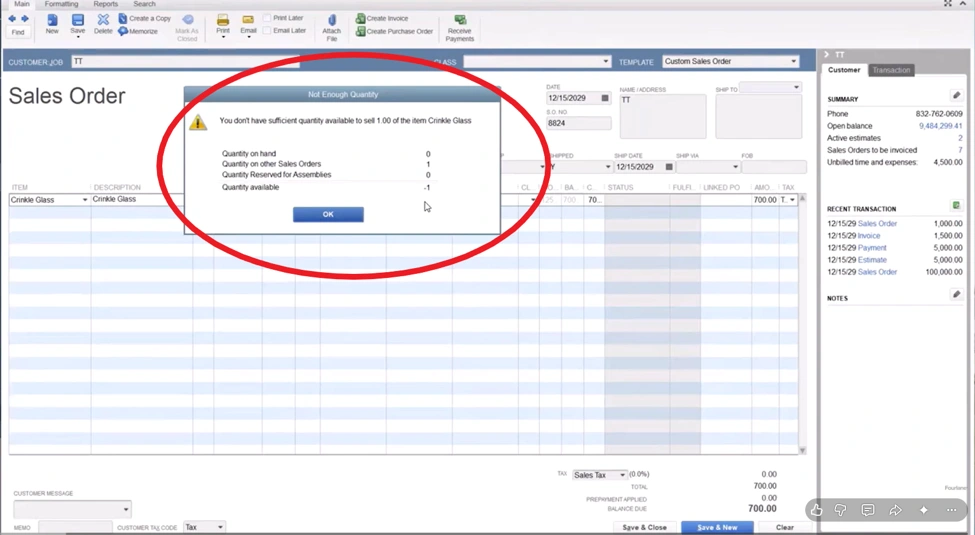
Sales orders also help QuickBooks calculate the quantity available to fulfill. The system begins with quantity on hand, subtracts quantities already committed to other sales orders, and displays the amount that is truly available to sell.
For example, an item may have a quantity on hand of zero while another open sales order has already committed one unit. The quantity available would then be negative one.
That negative available quantity should be treated as a stop sign. It should trigger communication with purchasing so the item can be reordered or received. It should not be treated as permission to continue invoicing.
Invoices Are Posting Transactions
Invoices create a real financial impact. When an invoice is saved, QuickBooks reduces quantity on hand and moves the item’s value from the inventory asset account on the balance sheet to cost of goods sold on the profit and loss statement.
If the inventory has not been received, QuickBooks does not have reliable quantity and cost information for the sale. That is when the financial reporting problems begin.
Why Negative Inventory Damages Your Financial Reports
QuickBooks Enterprise generally uses average cost to value inventory. When an item goes negative, the database may not have an accurate cost available because the receiving transaction has not been entered.
QuickBooks may temporarily use an outdated cost or even a zero cost. That amount is then posted to cost of goods sold.
When the inventory is eventually received, QuickBooks may retroactively recalculate the earlier transaction. This can change previously reported inventory values and cost of goods sold in the background.
Inventory Valuation Becomes Inaccurate
The inventory asset total on the balance sheet should reconcile with the Inventory Valuation Summary. Persistent negative inventory can cause those reports to stop matching.
Financial Reporting Becomes Unreliable
Gross margin, profit and loss reports, and sales reports may change because QuickBooks continues recalculating cost of goods sold after receiving new cost information.
The Balance Sheet May Be Understated
Negative quantities can produce negative inventory values. However, the value of products physically held in a warehouse should not be represented as a negative asset.
Job Costing Cannot Be Trusted
Businesses that assign inventory to jobs may see inaccurate budget-versus-actual reporting. The actual cost could be based on an outdated or zero cost instead of the true amount paid for the item.
Sales Profitability Becomes Unclear
Gross margin depends on accurate sales and cost information. Without a reliable average cost, a business cannot confidently determine whether it sold a product at a profit.
Negative inventory is not only an operational problem. It affects the leadership team relying on those financial statements to make decisions. The issue often becomes visible at the worst possible time, including month-end close, year-end tax preparation, audits, and financial reviews requested by a bank.
The Correct QuickBooks Inventory Workflow
The safest inventory workflow ensures that products are received in QuickBooks before they are invoiced to customers.
- Create the sales order. Record the customer’s order and reserve the required inventory without creating a financial impact.
- Create the purchase order. Record the order placed with the vendor. Setting a preferred vendor on the item can help QuickBooks automatically populate the purchase order.
- Receive the inventory. Enter the bill or item receipt so QuickBooks records both the quantity and cost.
- Create the invoice. Invoice the customer only after the inventory is visible in the accounting file.
The golden rule is simple: If the inventory has not been received in QuickBooks, it should not be invoiced.
The product may physically be in the warehouse, but it does not exist for accounting purposes until the receiving transaction has been entered.
A Real-World Cautionary Tale
One Fourlane client ignored these workflows for too long. The company could no longer trust its financial statements because reports did not reconcile and information entered one day appeared to change or disappear later.
Those were warning signs that the QuickBooks company file had developed deeper inventory and data problems.
The investigation began with two reports:
- Balance Sheet: Found under Reports > Company & Financial. The inventory asset balance should match the Inventory Valuation Summary.
- Negative Item Listing: Found under Reports > Inventory > Negative Item Listing. This report shows items currently displaying a negative quantity.
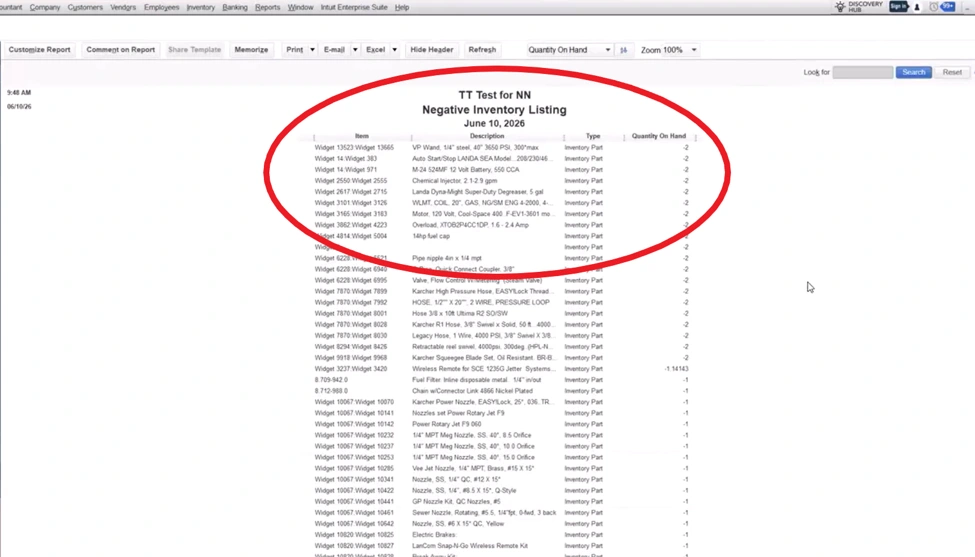
By allowing negative inventory to persist month after month, the client eventually reached the point where the file was crashing and data was disappearing. The remaining options were to repair the damaged database or begin working in a new company file.
How to Fix Negative Inventory in QuickBooks Enterprise
The most important thing to understand is that negative inventory cannot be fully corrected by entering an adjustment as of the current date.
For example, suppose an item went negative two months ago, but the problem was not discovered until the end of the current quarter. Increasing today’s quantity may correct the current balance, but the item was still negative during the previous two months.
Those historical periods may continue to contain inaccurate inventory values and cost of goods sold.
A proper cleanup requires returning to the point when the item first went negative and correcting the transaction sequence there.
Steps to Correct Negative Inventory
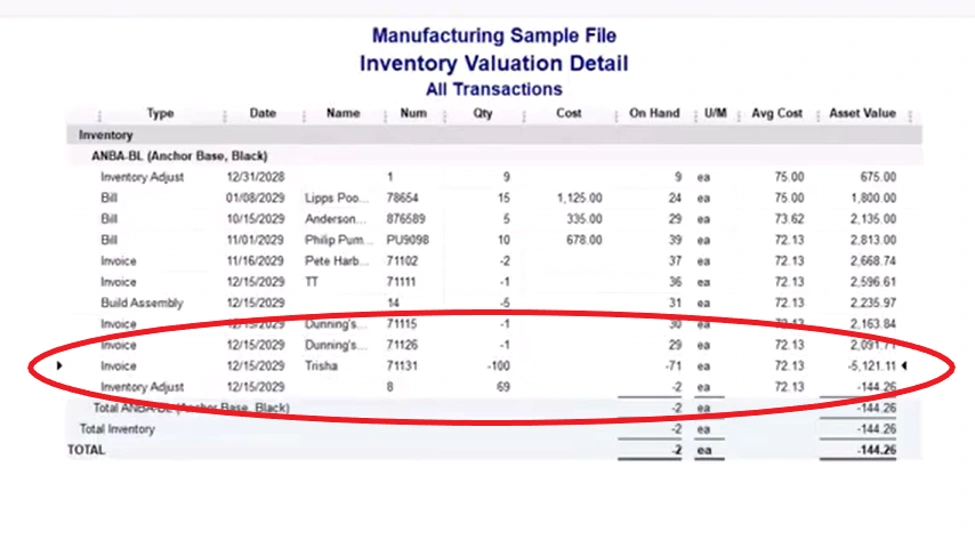
- Open the item’s transaction history. Use the Inventory Center or run the Inventory Valuation Detail report for all dates.
- Trace the inventory moving in and out. Bills and item receipts generally increase inventory, while invoices and sales receipts reduce it.
- Find the first negative occurrence. Identify the transaction where quantity on hand first dropped below zero.
- Review the receiving transaction. Determine whether a legitimate bill or item receipt was entered after the invoice that caused the negative quantity.
- Correct the transaction dates when appropriate. When supported by the actual business records, make sure the receiving transaction is dated before the invoice that sold the item.
- Review the financial reports again. Confirm that quantity, inventory value, cost of goods sold, and the balance sheet are now accurate.
Simply adjusting the current quantity on hand to a positive number is not enough. Every historical occurrence of negative quantity on hand should be investigated and corrected when appropriate.
Changes to prior-period transactions can affect previously issued financial statements and tax filings. Businesses should coordinate significant historical corrections with their accountant or an experienced QuickBooks inventory consultant.
How to Prevent Negative Inventory in QuickBooks Enterprise
Preventing negative inventory requires both properly configured QuickBooks preferences and consistent operating procedures.
1. Turn On the Appropriate Inventory Warnings
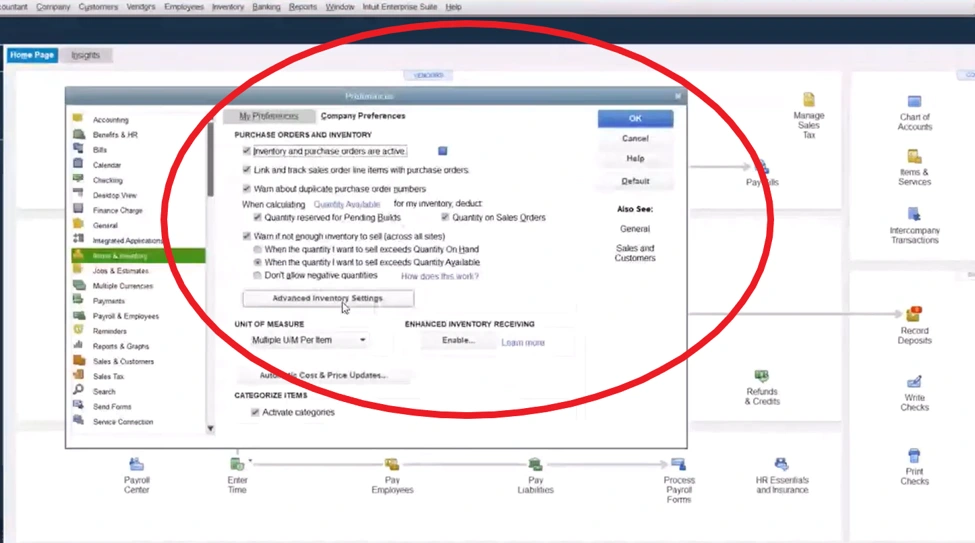
Go to Edit > Preferences > Items & Inventory > Company Preferences. Review the options that control how QuickBooks responds when a transaction could create a negative quantity.
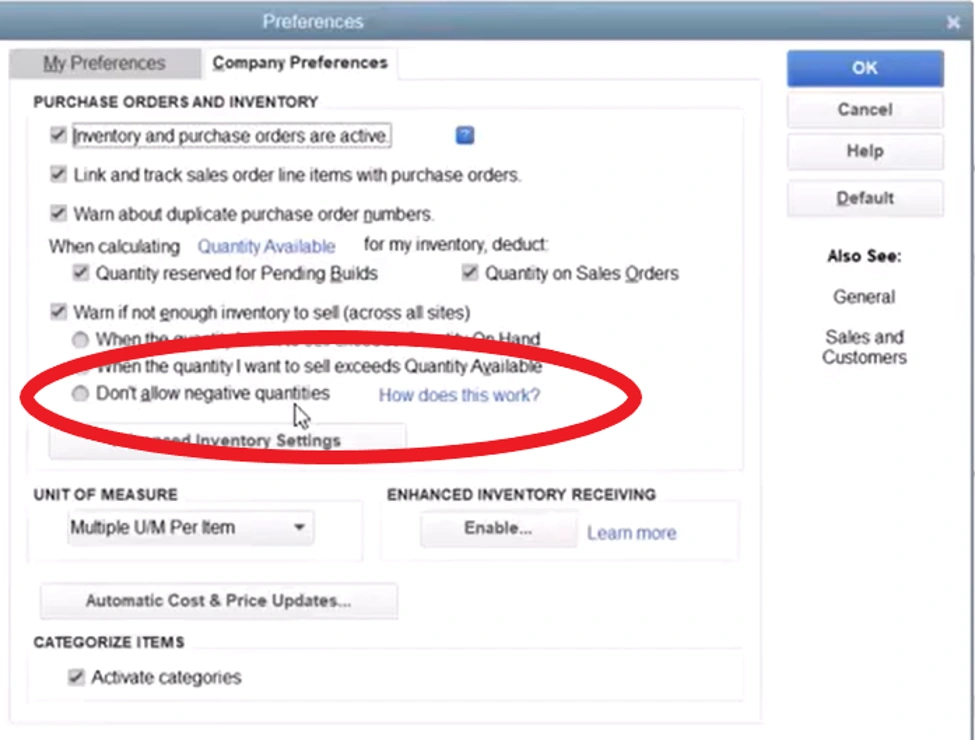
- Warn when quantity on hand is not enough: Generates a warning based on the quantity currently recorded in QuickBooks but does not account for open sales orders.
- Warn when quantity available is not enough: Accounts for inventory committed to open sales orders and assemblies waiting to be fulfilled.
- Do not allow negative quantities: Prevents users from saving a transaction that would push an item below zero.
The final option creates the strongest control. It can be helpful when warnings are routinely ignored, but it may also interrupt urgent workflows. Businesses should evaluate how the setting will affect sales, purchasing, warehouse, and accounting teams before enabling it.
2. Receive Inventory Before Selling
Require receiving transactions to be entered before invoices or sales receipts are created. This is the most important operational habit for preventing negative inventory.
Warehouse, purchasing, accounting, and sales teams should understand who is responsible for entering each transaction and when it must be completed.
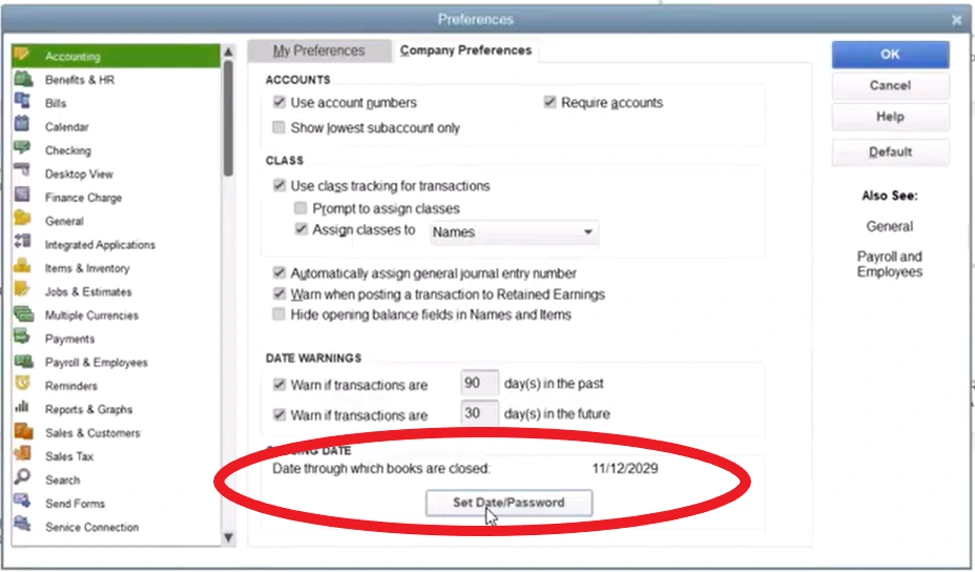
3. Lock Prior Accounting Periods
After completing month-end close, set a closing date and password. This reduces the risk that an employee will enter or modify a transaction in a completed period without approval.
For example, after May has been closed, set the closing date to May 31 and restrict access to the password. Only administrators or designated accounting employees should be permitted to make prior-period changes.
4. Reconcile Inventory Reports Regularly
Run the Balance Sheet and Inventory Valuation Summary using the same ending date and reporting basis.
The total value of the inventory asset accounts on the balance sheet should match the total shown on the Inventory Valuation Summary.
If the company uses multiple inventory asset accounts, total those accounts or group them under an inventory heading before comparing the values.
Businesses using Advanced Inventory should run the report using the global or all-sites view. Hiding zero-quantity items can also make the report easier to review.
Run the Negative Item Listing during the same review. Investigate when each item originally went negative instead of correcting only the current quantity.
5. Make Inventory Part of Month-End Close
Inventory should receive dedicated attention during every month-end close. In addition to invoicing, recording payments, and completing write-offs, the accounting team should reconcile inventory and investigate negative quantities.
Allowing inventory problems to continue month after month is how company files develop reporting discrepancies and data damage that becomes difficult to repair.
Monthly Negative Inventory Checklist
| Monthly Task | What to Confirm |
|---|---|
| Run the Balance Sheet | Record the total value of all inventory asset accounts as of the closing date. |
| Run the Inventory Valuation Summary | Confirm that the total matches the inventory value shown on the balance sheet. |
| Run the Negative Item Listing | Investigate every item currently displaying a negative quantity. |
| Review transaction dates | Confirm that inventory was received before it was invoiced. |
| Set the closing date | Protect the completed period from unauthorized changes. |
Frequently Asked Questions About Negative Inventory
What is negative inventory in QuickBooks Enterprise?
Negative inventory occurs when an inventory item’s quantity on hand drops below zero. It usually happens when an invoice or sales receipt is entered before the corresponding bill or item receipt.
What causes negative inventory in QuickBooks?
The most common cause is selling an item before receiving it into the accounting system. Incorrect transaction dates, delayed receiving, inventory adjustments, and employees bypassing quantity warnings can also contribute to the problem.
How do I find negative inventory in QuickBooks Enterprise?
Run the Negative Item Listing from the Inventory reports menu. You can also use the Inventory Valuation Detail report for all dates to identify the exact transaction that caused an individual item to fall below zero.
How do I fix negative inventory in QuickBooks Enterprise?
Find the first date the item went negative and correct the transaction sequence at that point. When supported by the actual business records, the receiving transaction should be dated before the invoice or sales receipt that caused the negative quantity.
Can I fix negative inventory with an inventory adjustment?
A current inventory adjustment may correct today’s quantity, but it does not necessarily repair the historical periods when the item was negative. Every prior occurrence should be reviewed and corrected where appropriate.
Why does negative inventory affect cost of goods sold?
QuickBooks relies on an item’s average cost when calculating cost of goods sold. If the item has not been received, QuickBooks may use an outdated or zero cost and recalculate the transaction after the correct cost is entered.
Why does inventory change after entering a bill?
When an item was previously sold while its quantity was negative, entering the bill or item receipt gives QuickBooks new cost information. QuickBooks may then recalculate the earlier sale and update inventory value or cost of goods sold.
How can I prevent negative inventory?
Receive inventory before invoicing, use sales orders to track commitments, enable negative-quantity warnings, lock closed accounting periods, and reconcile the balance sheet with the Inventory Valuation Summary every month.
The Bottom Line
Negative inventory is easy to create but difficult to fully correct. It can silently distort inventory valuation, cost of goods sold, gross margin, job costing, and the balance sheet.
A reliable correction requires more than increasing the current quantity. Businesses must identify when each item originally went negative, correct the historical transaction sequence, and improve the operating workflow that caused the problem.
Making inventory reconciliation a standard part of month-end close can help catch these issues before they damage financial reporting or the QuickBooks company file.
Need Help Fixing Negative Inventory in QuickBooks?
Negative inventory can affect years of financial reporting and may require more than a simple quantity adjustment.
Work with Fourlane’s QuickBooks inventory experts to identify the source of the problem, correct your inventory records, and create workflows your team can follow.
- Negative inventory diagnosis and cleanup
- Inventory valuation and balance-sheet reconciliation
- QuickBooks Enterprise workflow design
- Inventory process training and ongoing support